
Pluto TV is a goldmine of free entertainment—movies, live channels, and classic shows at your fingertips. But its biggest flaw? Zero offline support. Whether you're traveling, commuting, or just tired of buffering, you can't take your favorite content with you. At least, not officially. You can stream all you want with an internet connection, but the moment you go offline, your library vanishes. So, what's the workaround? In this guide, we'll explore the best free Pluto TV video downloader tools available in 2026.
Content
Part 1: Can You Download from Pluto TV?
The short answer is no. Unlike subscription-based services like Netflix or Amazon Prime, Pluto TV does not offer any built-in download feature on its website, mobile app, or smart TV platforms. Every second of content on Pluto TV requires an active internet connection. There's no "download for offline" button, no saved episodes, and no offline library. Why? Because Pluto TV is an ad-supported service. Its entire business model relies on serving you commercials in real-time. If you could download shows and skip the ads, that model falls apart.
Part 2: Safe Pluto TV Video Downloader - TunePat VideoGo All-In-One
After testing free screen recorders, risky online tools, and half a dozen dedicated downloaders, one program stands head and shoulders above the rest: TunePat VideoGo All-In-One. While most Pluto TV downloaders simply grab whatever stream they can find, TunePat does something different. It's not just a Pluto TV tool; it's a complete video downloading ecosystem that handles over 1,000 streaming platforms with ease.

TunePat VideoGo All-In-One
- Download and ad-free videos from Pluto TV.
- Download videos in high quality and save as MP4/MKV files.
- Download from 1,000+ sites (Netflix, Hulu, YouTube, etc.).
- Retain multilingual subtitles and audio tracks (including 5.1 audio).
- Select video quality, audio tracks, and subtitles as you wish.
- Record videos from any website at up to 8x faster speed.
Step 1 Launch and Access Pluto TV
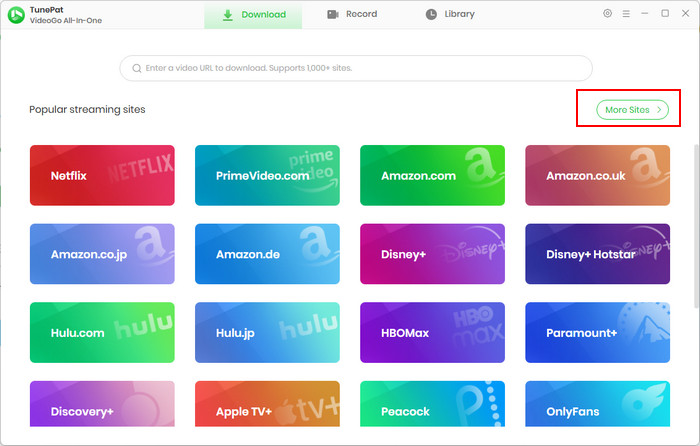
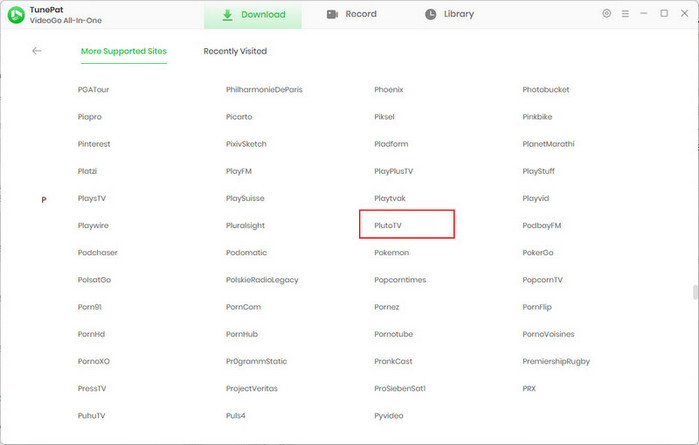
Open TunePat VideoGo on your computer. From the main interface, click "More Sites" in the top-right corner, scroll down to find PlutoTV, and click to open it in the built-in browser. Log in to your Pluto TV account if prompted.
Step 2 Configure Your Output Settings
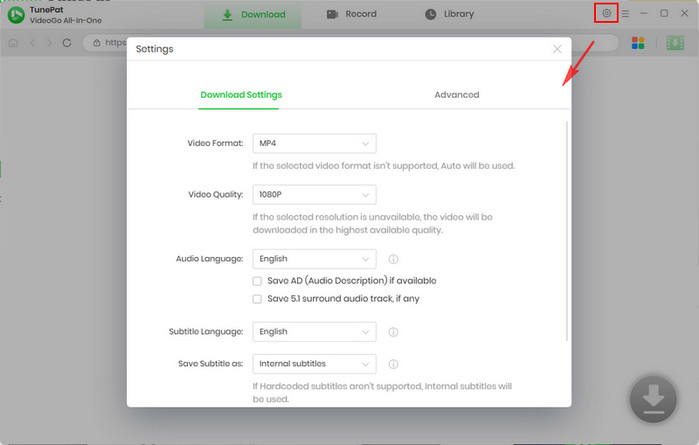
Click the gear icon ⚙️ in the top-right corner to open the Settings panel. Here you can customize: output format(MP4 or MKV), vdieo quality(up to source resolution), output path, etc., as you like.
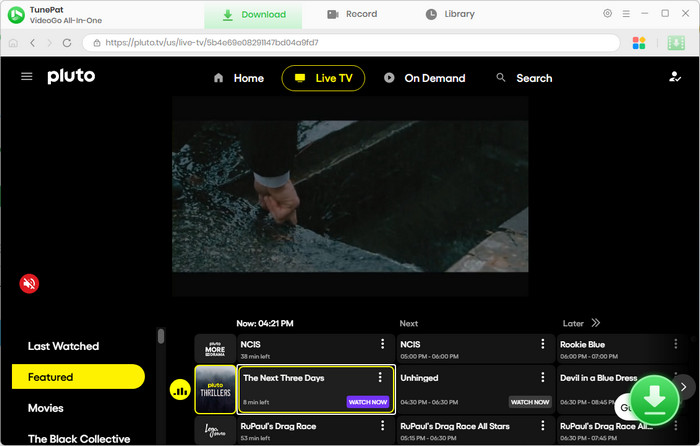
Step 3 Select Your Video
Browse or search for your desired movie or show within the embedded Pluto TV browser. Once you've found it, click the green arrow icon in the bottom-right corner. TunePat will automatically analyze the video stream.
Step 4 Customize Advanced Options
After analysis, a window will appear allowing you to fine-tune your download: video quality (up to the source quality, 1080p, 720p, or more), audio tracks, and subtitles (if any).
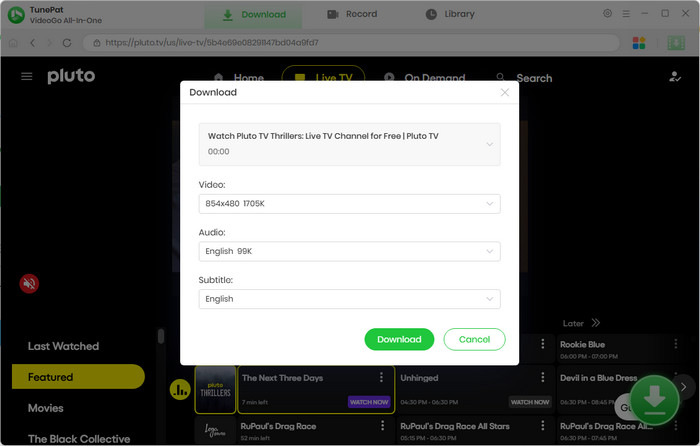
Step 5 Download Video from Pluto TV
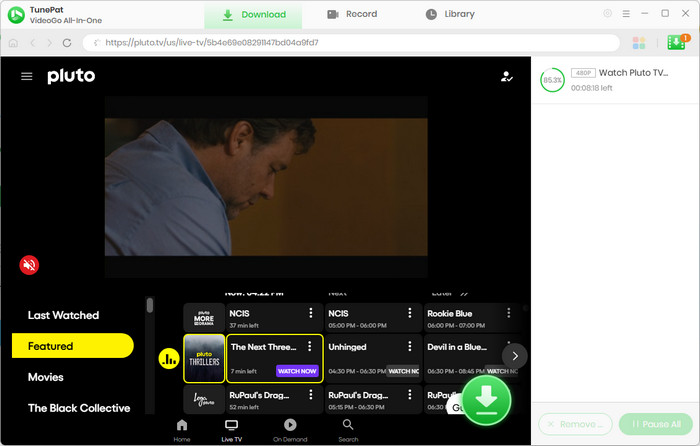
Click the "Download" button. TunePat's high-speed processing engine will save your video—completely ad-free—in moments. Once complete, navigate to your chosen output folder to find your Pluto TV video, ready for offline playback on any device.
Part 3: Top 5 Free Methods to Download Pluto TV Videos
Method 1: Built-in Screen Recording (100% Free)
Record Pluto TV Videos On Windows (Xbox Game Bar)
Windows 10 and 11 include a built-in game recording tool that works for screen capture.
- Launch your browser, disable hardware acceleration, and navigate to pluto.tv. Find the movie or show you want to record.
- Press Windows key + G on your keyboard. The Game Bar overlay will appear.
- Click the Capture widget (camera icon) or Record button (circle icon). Alternatively, press Windows + Alt + R to start recording immediately.
- Begin playing the Pluto TV video. The Game Bar records whatever is on your screen.
- Click the Stop button on the recording panel or press Windows + Alt + R again. Recordings are saved automatically in: Videos → Captures folder.
Record Pluto TV Videos On Mac (QuickTime Player)
Every Mac comes with QuickTime Player, which includes a professional-quality screen recorder.
- Go to Applications and launch QuickTime Player.
- Click File → New Screen Recording from the menu bar.
- Before recording, click the small arrow next to the record button and select your microphone source. For Pluto TV audio, choose "Built-in Microphone" or ensure system audio is being captured.
- Click the red Record button. You have two options: record the full screen or select a specific region.
- Start playing your desired content. QuickTime will capture everything in your selected area.
- Click the Stop button in the menu bar (or press Command + Control + Esc).
- Go to File → Save and choose a location for your recording.
Record Pluto TV Videos On On iPhone/iPad
- Go to Settings → Control Center → tap the + next to Screen Recording.
- Launch the Pluto TV app or open it in Safari.
- Swipe down from the top-right corner (iPhone X or newer) or swipe up from the bottom (older iPhones) to open Control Center. Tap the circle-with-dot record icon. A 3-second countdown begins.
- Immediately start playing the Pluto TV content. The recording captures both screen and audio.
- Tap the red status bar at the top of your screen and confirm Stop, or return to Control Center and tap the record icon again.
- Saved videos appear in the Photos app.
Record Pluto TV Videos On On Android
- Swipe down twice from the top of your screen to open Quick Settings. Look for Screen recorder.
- Tap Screen recorder in Quick Settings. A countdown will appear.
- Open the Pluto TV app or website and start your video.
- Swipe down and tap the Screen recorder notification, or use the stop button in the floating controls.
- Recordings save to Photos or Gallery → Screen recordings folder.
TunePat VideoGo All-In-One provides an advanced recording feature that allows you to record not only Pluto TV videos, but also live streams, webinars, pay-per-view events, and any video that can't be downloaded. Unlike other real-time recording tools, TunePat helps you record videos at up to 8x faster speed, which drastically reduces waiting time and storage use.
Method 2: Online Web Downloaders
🔗: https://ttok.com/plutotv-video-downloader/, https://faceb.com/plutotv-mp4-downloader/
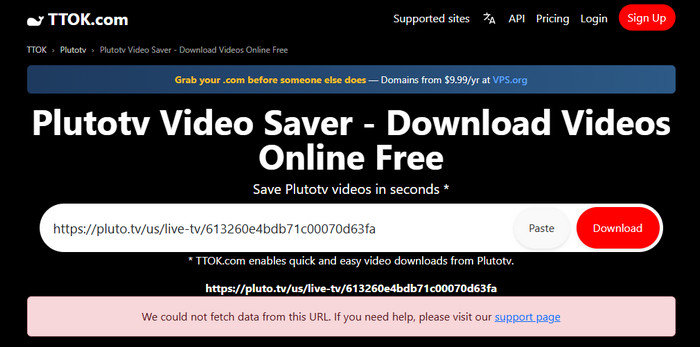
TTOK.com or its mirror sites like faceb present themselves as a straightforward, browser-based solution for downloading videos from Pluto TV and other sites. It functions as an online video saver that requires no software installation, aiming to provide quick access to video files for offline viewing directly through your web browser.
How TTOK Works:
- Copy the URL of the Pluto TV video you want.
- Paste the link into the input box on the TTOK website.
- Save the video directly to your device.
Pros of online Pluto TV video downloaders:
- No Installation Required: It works entirely in your web browser on any device (computer, phone, tablet) without needing to download or install software.
- Free Download Available: Users can download a limited number of videos per day for free.
- User-friendly: The three-step process is very easy to follow, and most downloads are completed within seconds.
Cons of online Pluto TV video downloaders:
- Unstable Performance: Online tools like TTOK often have a low success rate with Pluto TV. They frequently fail to analyze encrypted links, resulting in "Content not found" errors.
- Daily Limits for Free Users: Free usage is restricted to a limited number of downloads per day. Unlimited access requires a premium subscription.
- Potential Quality Issues: Online tools often struggle to capture the highest available quality, sometimes defaulting to lower resolutions like 480p.
- Security Risks: Many online video downloaders of this type are known for displaying intrusive pop-up ads or potentially harboring malware risks.
- No Ad Removal: This tool simply downloads the stream as-is, meaning any commercials embedded in the Pluto TV video will remain in your saved file.
In-Depth Review: Why a Dedicated Downloader is the Best Long-Term Solution
While built-in tools are great for a quick, free capture and online downloaders offer a tempting no-install option, they are riddled with compromises. You either waste hours of your time (screen recording) or risk your privacy and settle for low-quality, ad-filled files (online tools).
TunePat VideoGo solves all of these problems. It provides a safe, fast, and automated way to build a high-quality, ad-free offline library from Pluto TV. Its advanced downloading feature alone—capturing content up to 10x faster than real-time while preserving 1080p quality—puts it in a different league. For anyone serious about downloading streaming content, TunePat is the clear winner.
Comparison: TunePat VideoGo vs. Other Common Tools
| Feature | TunePat VideoGo | Free Screen Recording | Online Downloaders |
|---|---|---|---|
| Ad Removal | Yes | No (Records Ads) | No |
| Video Quality | High (Up to 720p/1080p) | Variable, often lower | Low, often 480p |
| Download Speed | Up to 10x | 1x | Variable |
| Batch Download | ✔ | ✖ | ✖ |
| Safety | High | High | Very Low (Risk of Malware) |
| Success Rate | High | Lower | Lower |
| Beyond Pluto TV | 1,000+ Sites | Any site (manually) | Very few sites |
Part 4: FAQs about Pluto TV Video Downloader
Is it legal to download from Pluto TV?
No, downloading from Pluto TV violates its Terms of Service, though the legal implications for personal use are more nuanced. For the average user downloading Pluto TV content for personal, offline viewing only, the practical risk is extremely low. Pluto TV has not pursued legal action against individual users for personal downloading.
Can I download Pluto TV shows on my phone?
No, you cannot directly download Pluto TV shows to your phone using the official app. However, you can still download Pluto TV videos via screen recording tools or online downloaders. For a reliable, high-quality, ad-free experience on your phone, the most effective path is to use a dedicated tool like TunePat VideoGo on a computer first, and then transfer the file.
Why does my screen recording of Pluto TV come out black?
The most common reason your screen recording of Pluto TV comes out black is DRM (Digital Rights Management) protection clashing with your device's graphics hardware. You can try to disable hardware acceleration in your browser or use TunePat VideoGo instead to get rid of the problem forever.
Conclusion
Let's be honest: Pluto TV's lack of offline downloads is frustrating. But as this guide has shown, you have options. You can wrestle with built-in screen recorders, sitting through hours of ads and hoping your recording doesn't fail. You can gamble with online downloaders like TTOK, risking malware and unreliable quality for a few free downloads. Or you can do what serious cord-cutters do: use the right tool for the job.
With TunePat, you're not just downloading videos—you're gaining back hours of your life. No more real-time recording. No more manual ad-skipping. Start a free trial now and decide for yourself.





Izzy Warren
Content Writer