How to Download Amazon Video in High Quality [1080P HD]
 By Amelia Gonzalez
Amazon Video Tips
Updated on 05/08/2025
By Amelia Gonzalez
Amazon Video Tips
Updated on 05/08/2025
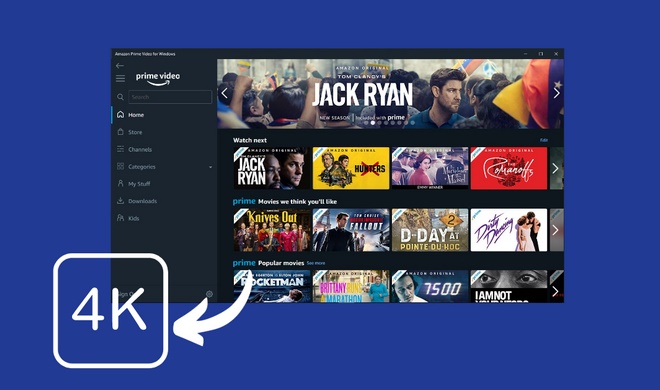
With an Amazon Prime Video subscription, you have access to thousands of movies, TV shows, and documentaries. It offers HD and 4K UHD video quality for all subscribers, no matter which plan you subscribe to. Besides, you can download HD videos from Prime Video and watch them without an internet connection. In this article, we will show you how to download Amazon Prime Video in HD 1080p.
Contents
Part 1: Download Titles in HD on Amazon Prime Video
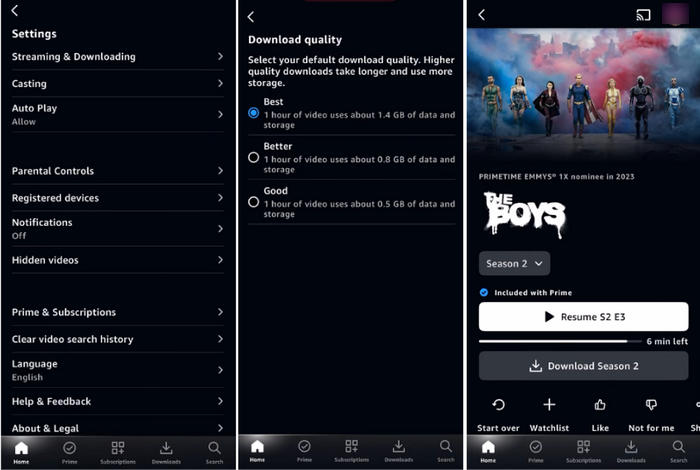
Amazon allows you to download videos in high quality up to 1080p. To make it done, you must have an Amazon Prime or Prime Video subscription and a Prime Video app installed on an iOS, Android, macOS, Windows 10, or Fire tablet. Then follow the steps to download Amazon videos in 1080p HD.
Step 1 Open the Prime Video app on your device and log in to your account.
Step 2 Tap on your profile, and click the gear icon to open the Settings screen.
Step 3 Choose "Streaming & Downloading", and select "Best" as the download quality.
Step 4 Browse Amazon's video library and open the movie or episode you'd like to download.
Step 5 Tap the download button, and you will save Amazon Prime HD videos.
Note:
- Generally, "Best" can reach 1080p, "Better" 720p, and "Good" SD (480p) on Amazon Prime Video.
- Downloading at high quality requires a fast and stable internet connection and more cellular data consumption. Change the quality if you want to control them.
- If you are downloading videos on a computer, you can choose the download quality after clicking the download button.
- Amazon Prime Video has some download limits: you can download a maximum of 25 titles across all devices with one Amazon account; once downloaded, you have 30 days to finish watching, and you have to watch them within 48 hours after clicking to play.
Part 2: Download Amazon Prime Video in 1080P MP4
Amazon Prime Video offers the download feature for temporary offline watching. What if you want to download more than 25 titles and save them forever? You need to use TunePat Amazon Video Downloader to remove the restrictions.
As a professional video downloader, TunePat Amazon Video Downloader can download Amazon Prime Video in high quality up to 1080p HD. It supports outputting Prime Video as MP4 and MKV files on computers, so you can watch the videos offline at any time or transfer the downloaded files to other devices without limits. If you would like to control the storage space, you can choose 720p, 540p, or 480p, 360p, 280p as the download quality.
What's more, TunePat Amazon Video Downloader can save multi-language audio tracks and subtitles, which provides you with the same viewing experience on the Amazon Prime Video app. TunePat sets no download limit, so you can download as many as you want. The downloaded videos are not affected by your subscription, meaning you can keep them forever.

TunePat Amazon Video Downloader
- Download movies and TV shows from Prime Video.
- Save Prime Video in MP4 or MKV format.
- Retain up to 1080p Prime Videos after downloading.
- Keep audio tracks and subtitles in multiple languages.
- Offline play Prime Video after canceling the subscription.
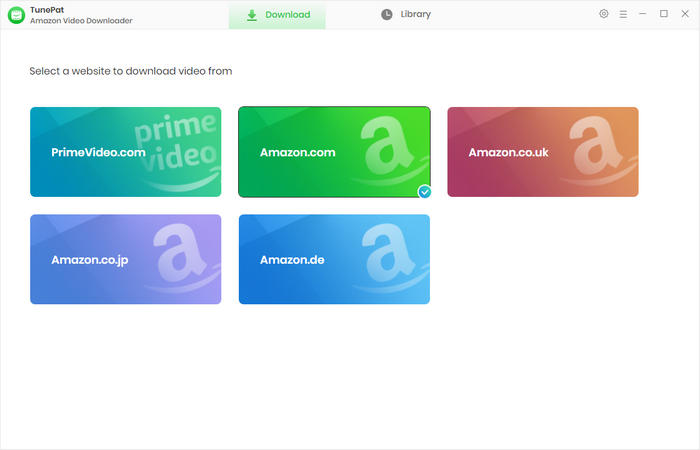
Step 1 Start TunePat Amazon Video Downloader
Launch TunePat Amazon Video Downloader on your computer, and select a site according to your region. You can then see the built-in web browser open. Enter your account information to log in.
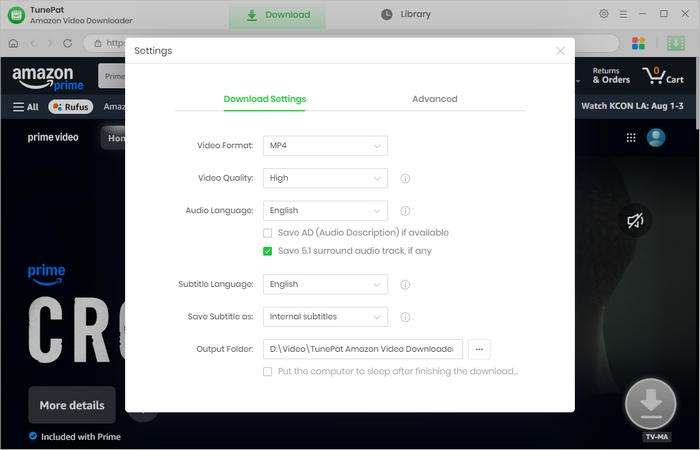
Step 2 Personalize General Settings
TunePat allows you to choose download settings as you like. Click the "Settings" icon that looks like a gear. You can then choose the output format as MP4, and High as the video quality. Make other settings according to your preference.
Step 3 Open Your Favorite Video to Download
Browse the built-in web browser to open the movie or series you intend to download. Alternatively, enter the video link in TunePat's search bar to quickly locate the video. Then, click the green arrow icon, and TunePat will parse the title.
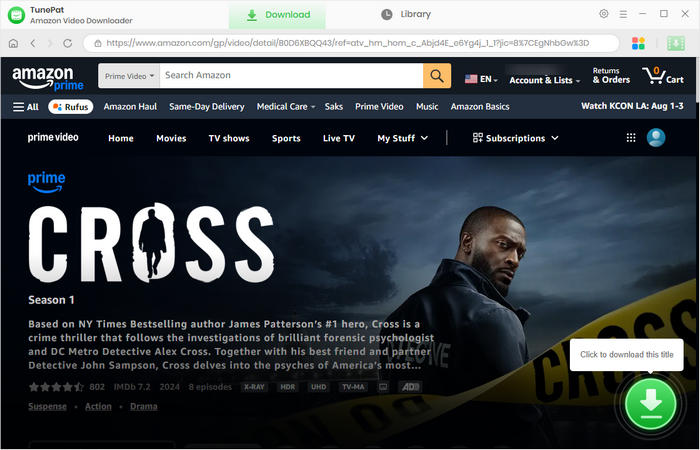
Step 4 Choose 1080P as Download Quality
Next, select 1080p as the download quality. Other video quality options, including 720p, 540p, and 480p, are also offered. Choose audio tracks and subtitles as needed. If you are downloading a TV series, you are allowed to choose the season and episodes; then click "Advanced Download" to get the options.
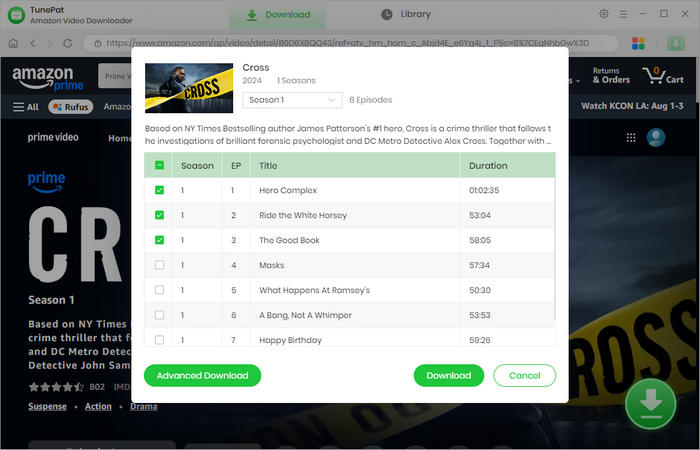
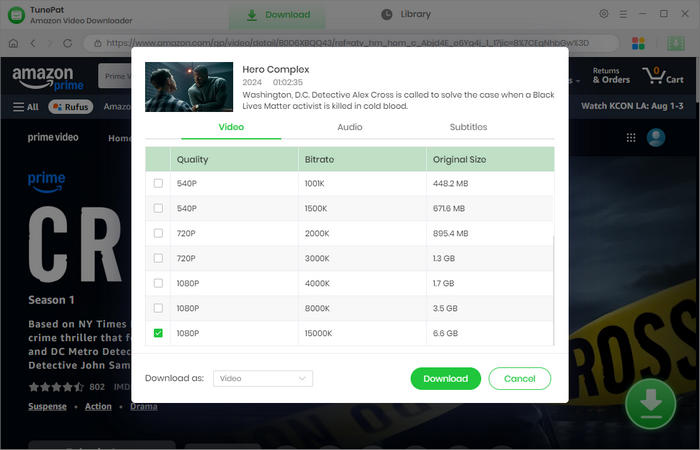
Step 5 Download Prime Video in 1080P MP4
Click "Download" and TunePat will start downloading from Prime Video. During the process, 1080p HD is fully saved, and the titles are converted to MP4. When it is complete, you will get Amazon Prime Video in high quality.
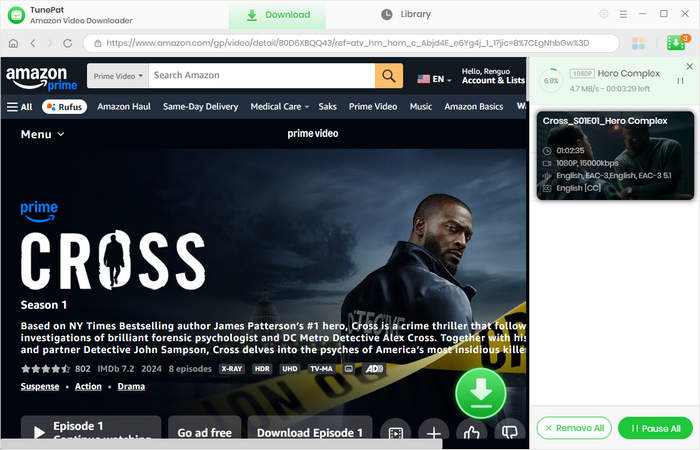
Part 3: FAQs about Amazon Prime Video Quality
How to change download quality on Amazon Prime?
Amazon Prime Video download quality includes three options: Good, Better, and Best. If you are using the Prime Video app on a mobile device, you can change download quality by tapping "your profile > Settings > Streaming & Downloading > Download quality". If you are using a computer, you can change the quality in "Download Quality" on the pop-up window opened by clicking the download button.
How to get Prime Video HD download?
To download Prime Video in HD quality, you need to select "Best" or "Better" as the download quality. Simply check the previous question to get the steps. Alternatively, you can use TunePat Amazon Video Downloader, a video download expert, which helps you effortlessly download Prime Video in 1080p MP4, and allows you to watch the video offline forever.
Conclusion
Amazon Prime Video download quality ranges from SD to HD. To download Amazon Prime HD videos, you need to select "Best" as the download quality, which can be easily done on your mobile devices or computers. Besides, you can use TunePat Amazon Video Downloader to save Prime Video in Full HD quality. TunePat Amazon Video Downloader gives you many benefits. Firstly, it can help you download unlimited HD videos from Prime Video. Secondly, you can keep the download forever. Lastly, you can move the downloaded video files to other devices as needed. Enjoy unlimited HD videos now!



Amelia Gonzalez
Web Editor