How to Download Amazon Video to External Hard Drive
 By Amelia Gonzalez
Amazon Video Tips
Updated on 06/08/2025
By Amelia Gonzalez
Amazon Video Tips
Updated on 06/08/2025
When your downloads have filled up all the memory, moving Amazon video to external drive is an efficient method. But compared to moving the videos, it is more convenient to download Amazon Prime Video to hard drive. Can you transfer Amazon downloads? Yes. Read this article and learn how to download Amazon Video to external hard drive.
Contents
Part 1: How to Move Amazon Prime Video Downloads to Hard Drive
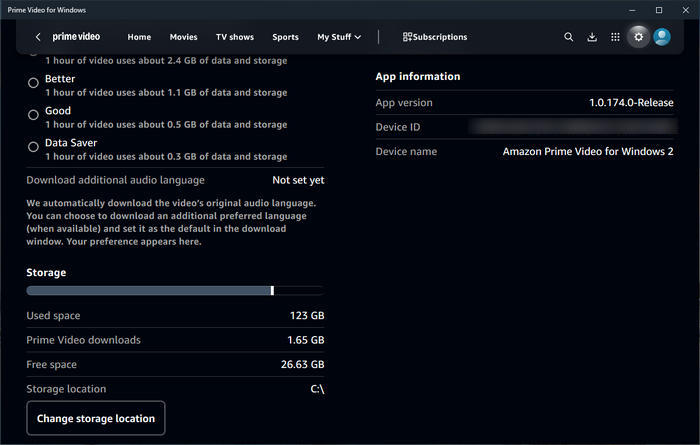
When you click the download button on the Prime Video app, the videos are saved temporarily on your device. You can move Amazon Video downloads to external hard drive by changing storage location. In this way, the location of the Prime Video app is changed, as well as the downloads location. This makes it possible to free up your device's memory space.
Step 1 Plug an external hard drive into your computer, and open the Prime Video app.
Step 2 Click the gear icon next to your profile to open the Settings screen.
Step 3 Scroll down and click "Change storage location" and "Yes".
Step 4 The Settings panel of Windows will open. Find and click the Prime Video app.
Step 5 Choose "Move", select your external hard drive as the location, and click "Move".
Note: Amazon videos are all encoded in Amazon's exclusive format, which can be accessed within the Amazon Prime Video app only and can't be correctly read by other media players. So, if you mean to download Amazon videos to external hard drive in a common format, please check the next part.
Part 2: How to Download Amazon Video to External Hard Drive
Though you can change the Amazon downloads location to an external hard drive, the downloads cannot be played by media players like Windows Media Player. Besides, the downloaded videos are temporarily saved on your device, and you cannot access them once your Prime Video subscription expires. How to download Amazon Prime Video to external hard drive in MP4 format? You need to use TunePat.
TunePat Amazon Video Downloader is a great helper to download Prime Video to external hard drive. It is a professional video downloader that can download Amazon Prime movies and series to local computers. By using TunePat, you can get video files in plain MP4 or MKV format and then easily move Amazon videos to external hard drive. The downloaded files are can be read and played by any compatible media player, which makes it possible to watch Amazon videos without the Prime Video app.
In addition, TunePat preserves HD quality of Amazon videos. It can fully keep up to 1080p quality, giving you an immersive offline viewing experience. If you prefer to download audio tracks and subtitles in multiple languages, you can feel confident about TunePat. This tool is capable of saving all the available audio and subtitles of Amazon videos. TunePat also supports batch download at a fast speed, saving you time and effort.

TunePat Amazon Video Downloader
- Download movies and TV shows from Prime Video.
- Save Prime Video in MP4 or MKV format.
- Retain up to 1080p Prime Videos after downloading.
- Keep audio tracks and subtitles in multiple languages.
- Offline play Prime Video after canceling the subscription.
Step 1 Set up TunePat Amazon Video Downloader
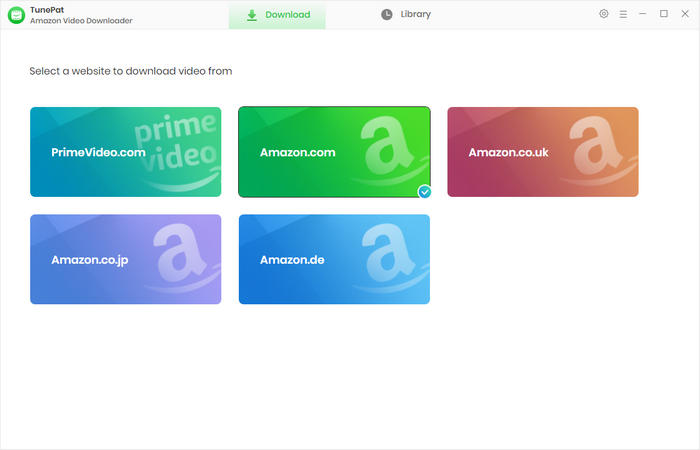
First of all, download and install TunePat on your computer. It is a 100% safe and clean program and does not harm your device. Run it and choose an Amazon video site according to your location. Then log in to your account on the built-in Amazon video web browser.
Step 2 Personalize Basic Output Settings
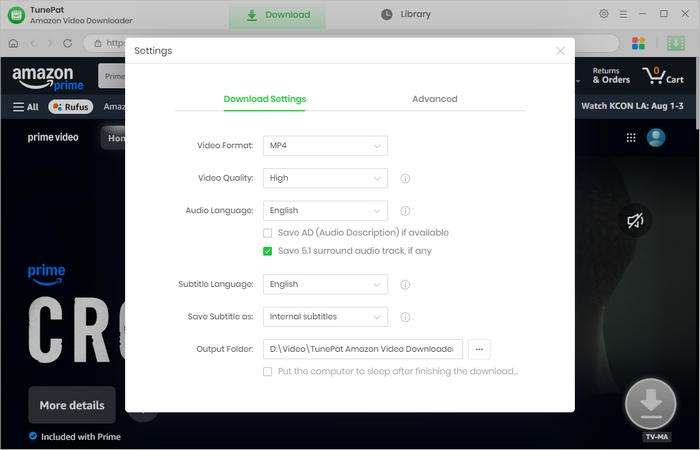
TunePat enables you to customize output settings. Simply click the "Settings" icon that looks like a gear. You can choose an output format, pre-set video quality, choose the languages of audio and subtitles, and more.
Step 3 Select Amazon Videos to Download
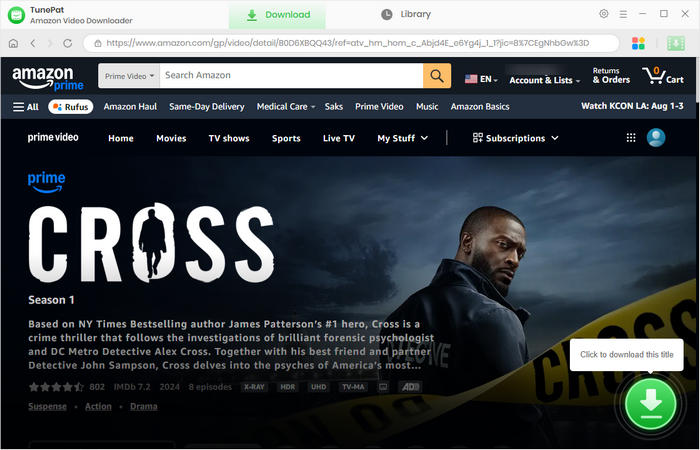
Browse the Amazon Video library and open the movie or series you would like to download. Click the green arrow located in the bottom right. TunePat will then parse the title.
Step 4 Choose Advanced Download Parameters
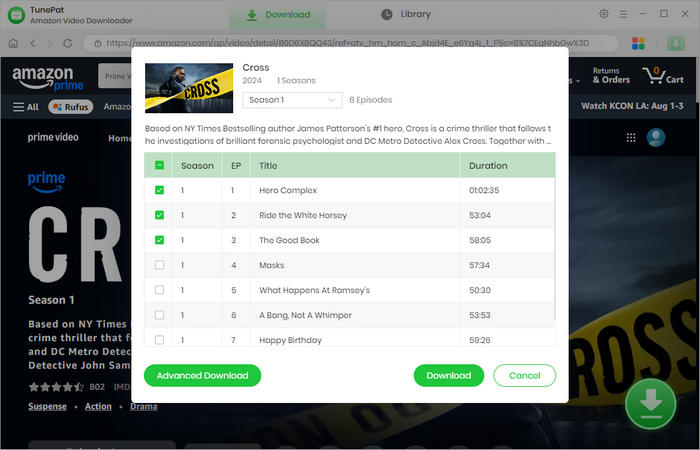
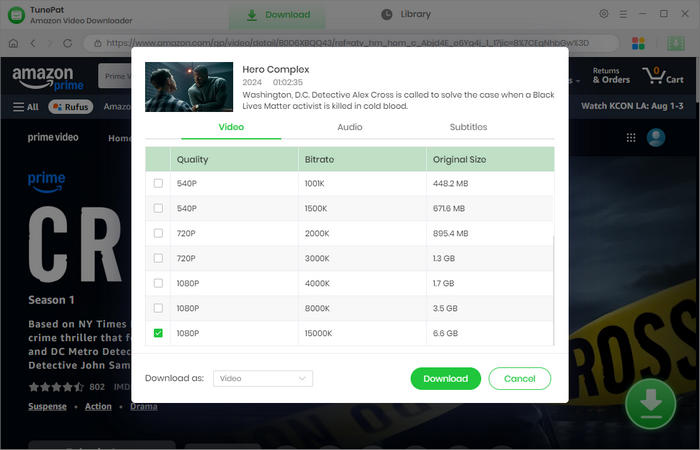
You can then choose specific video quality, audio tracks, and subtitles from the pop-up window. Multiple audio tracks and subtitles can be selected. If you are downloading a series, you are allowed to choose the season and episodes first. All seasons and all episodes can be selected. Then click "Advanced Download" to get more options.
Step 5 Download Amazon Prime Video to Local Computer
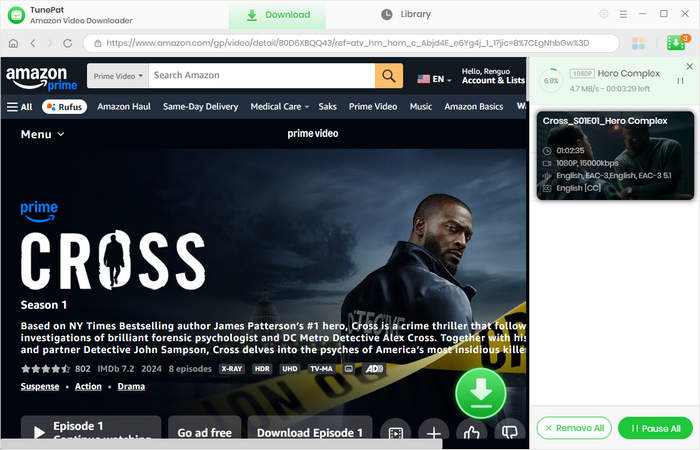
Click the "Download" button, and TunePat will start to download Amazon Prime Video. TunePat has a fast download speed and can download an episode in minutes. If you have more titles to download, just repeat the steps to add them to the task list.
Step 6 Move Amazon Video to External Hard Drive
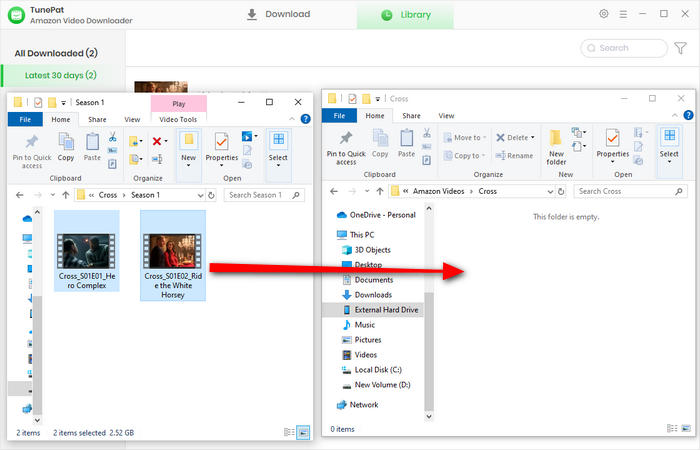
After the download is finished, plug your external hard drive into your computer. Then simply locate the downloads, right-click the folder, highlight the "Send to" option, and select the name of the external hard drive. A green status bar will appear in the "Copying" dialog. When the process is complete, the dialog box will close, and a copy of your files will reside on the external hard drive. Or you can also copy and paste those files to the drive. Now you can save Amazon videos on your hard drive and can play them offline anytime, anywhere.
Part 3: FAQs about Amazon Prime Video Downloads
Can I download movies from Amazon Prime to my computer?
Yes. The Amazon Prime Video app offers a download feature for computers in Windows and macOS. By tapping the download button, you can save the videos on your computer. But attention, they are encoded files which can be recognized only by Prime Video. To download movies from Amazon Prime in MP4, you need to use TunePat Amazon Video Downloader. It is a video download expert for Amazon videos to computers.
Can I transfer Amazon Prime movies to USB?
Yes, you can transfer Amazon Prime movies to USB. You get files after downloading videos on Prime Video. However, the files are encoded and temporary files, which can be read and opened only by Prime Video. If you mean to transfer Amazon Prime movies to USB in plain format, you need to use a video downloader. TunePat Amazon Video Downloader is the right one to download Amazon Prime movies in MP4 and MKV formats. With TunePat, you can get plain video files, so that you can play the movies via USB on any device without Prime Video.
You may also be interested in How to Move Amazon Videos to USB.
Conclusion
Amazon Prime Video allows you to change the storage location to external hard drive, so as to free up your storage. However, all the downloads can only be played on Prime Video. With the help of TunePat Amazon Video Downloader, you can download Amazon videos to local computer in plain MP4 format. The downloaded files can be read by any compatible media player, so you can enjoy them on any of your devices. Try TunePat and freely move Amazon videos to any device.





Amelia Gonzalez
Web Editor