How to Watch Amazon Video in 4K Resolution
 By Amelia Gonzalez
Amazon Video Tips
Updated on 7/30/2026
By Amelia Gonzalez
Amazon Video Tips
Updated on 7/30/2026
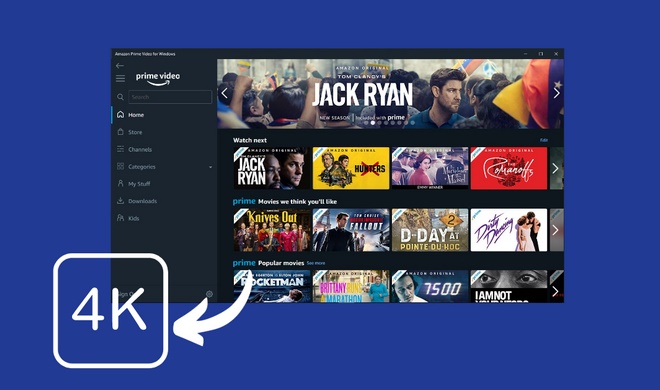
Whether you have an Amazon Prime membership or subscribe to the Prime Video standalone service, you can stream a variety of 4K content. How can you enjoy 4K Amazon movies? Is there any requirement for the device? Fret not. This article will walk you through how to watch 4K videos on Amazon Video, as well as how to find 4K content on Amazon Prime Video.
Contents
Part 1: What Is Required to Watch Amazon 4K Movies
To watch Amazon 4K videos, you have to meet the following requirements.
Amazon Video Subscription
An Amazon Prime or Prime Video subscription is the first requirement. Having an Amazon Prime subscription is easy. Simply go to the Amazon Prime Video app, and you will be instructed.
High-Speed Internet Connection
Amazon requires at least 15 Mbps for 4K streaming. If the network is poor, you cannot stream 4K videos even though your device supports 4K.
4K-Supported Device
To watch 4K Amazon movies, you need to have a device that supports 4K video playback. You can check if your device supports 4K by contacting customer service. Besides, the device must also support HDCP 2.2 content protection standards. Here is the list of popular 4K-supported devices:
- Smart TVs:
- Samsung TV: S90D OLED, QN90D Neo QLED, and LS03D Frame QLED series
- LG TV: LG OLED evo G5, C5, and B5 series; QNED92 and QNED85 series; UHD series
- Sony BRAVIA TVs: BRAVIA 9, BRAVIA 8, BRAVIA 7, and BRAVIA 3; A95L Series; X85L and X90L Series; X80K, X85K, and A80K series
- TCL TV: C755 and C8K series, C645 and C7K series, P755 and V6B series, S4, 4-Series, S5 Series
- Streaming Devices:
- Amazon Fire TV: Fire TV Stick 4K Max, Fire TV Stick 4K, Fire TV Cube, Fire TV 4-Series
- Apple TV 4K
- Roku: Streaming Stick 4K, Streaming Stick 4K, Ultra, Express 4K+, Premiere, Premiere+, Streambar
- NVIDIA Shield: NVIDIA Shield TV Pro, NVIDIA Shield TV (tube model)
- Game Consoles:
- Xbox: One X, Series S, Series X
- PlayStation: 4 Pro, 5
Part 2: How to Find 4K Content on Amazon Prime Video
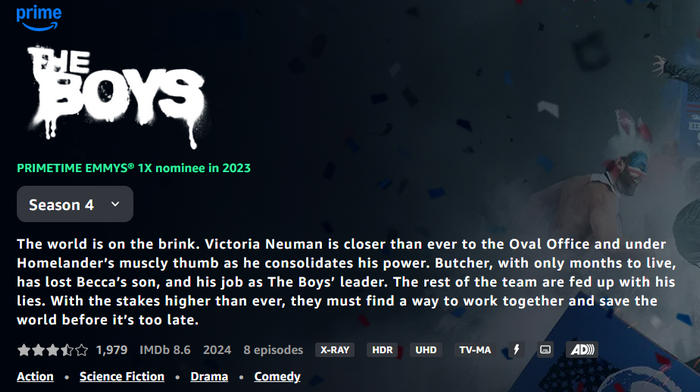
There are a few methods to find 4K movies and shows on Amazon Prime Video. Whether you use a TV, mobile phone, or tablet, you can find 4K videos in the Amazon Prime Video app or through the web browser. If the title has 4K, it shows the "UHD" icon on the details page. The following are two ways to find 4K videos on Amazon Prime Video.
Search for 4K Videos in Amazon Prime Video App
You can find 4K videos by entering keywords in the Amazon Prime Video app. The app offers a search feature, allowing you to enter words and locate videos quickly and accurately. Simply enter the word "4K", "UHD", or other relevant words in the search bar, and hit the Enter button, Amazon will display hundreds of thousands of 4K videos, including subscribed or rental videos. The shortcoming of this method is that you have to browse through a long list of 4K videos to look for what you want to watch.
Search for 4K Videos in Amazon Video Web Browser
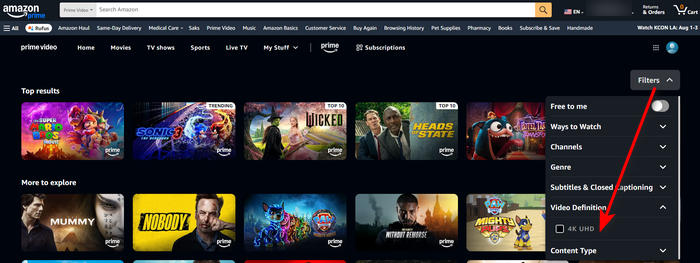
You can conveniently filter 4K videos if you use the Amazon video web browser. The website offers a "4K" filtering feature. By selecting it, you can filter your searches to show 4K videos only. Follow the steps to find 4K videos.
Step 1 Open the Amazon video website and log in with your Amazon Prime or Prime Video account.
Step 2 Enter any word in the search bar and confirm.
Step 3 Click the "Filters" button on the right, select "Video Definition", and click "4K UHD".
Step 4 You can get videos in 4K on Amazon Prime Video.
Part 3: How to Download Amazon Movies in 4K Resolution
Unfortunately, Amazon doesn't allow you to download videos with 4K quality. Though it gives you an option of "Best", the quality doesn't reach 4K. So, how to watch Amazon movies in 4K offline? The best way is to download videos and upscale the quality.
Download Movies and Shows from Amazon Prime Video on Computer
TunePat Amazon Video Downloader is a professional tool for downloading Amazon videos with high quality on computers. It can download Amazon videos with up to 1080p quality, a perfect quality for offline playback, allowing you to enjoy crystal-clear movies without an internet connection. Whether you intend to download movies or TV shows, have an Amazon Prime or Prime Video account, TunePat gets them covered.
TunePat offers a comprehensive downloader. It can download Amazon videos in MP4 or MKV format, so that you can transfer the videos to other devices and play them with media players. As a video download expert, TunePat enables you to download audio tracks and subtitles in many languages. Three types of subtitles are available—internal, external, and hardcode.
Whether you have an Amazon Prime account in the US, UK, DE, or other countries, you can download Amazon videos with TunePat. When you download a TV show with multiple seasons, TunePat offers the batch download, and you can add all seasons and episodes with one click. After clicking the download button, all the videos will be downloaded at a super-fast speed.
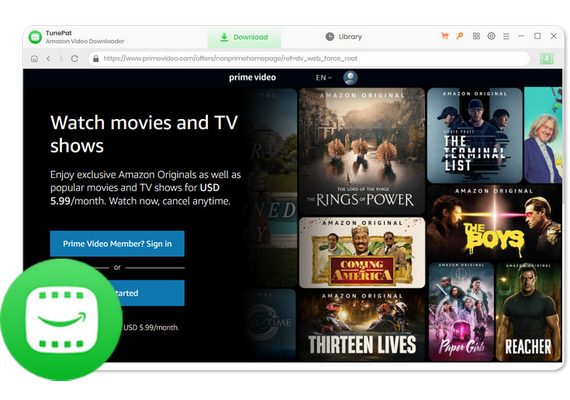
TunePat Amazon Video Downloader
- Download movies and TV shows from Amazon Prime Video to PC and Mac.
- Save Prime Video in plain MP4 and MKV formats.
- Preserve up to 1080p quality at a fast speed.
- Retain multilingual subtitles and audio tracks (including 5.1 audio).
- Select video quality, audio tracks, and subtitles as you wish.
- Get permanent offline playback for Amazon movies and shows at any time.
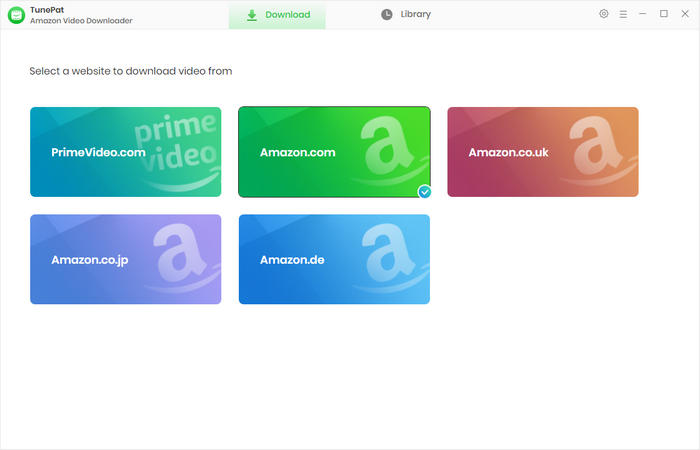
Step 1 Log in to Amazon Prime Video on TunePat
Launch TunePat Amazon Video Downloader, and select a site that matches where your account belongs. The built-in web browser will appear, asking you to sign in with your Amazon Video account.
Step 2 Personalize Output Settings
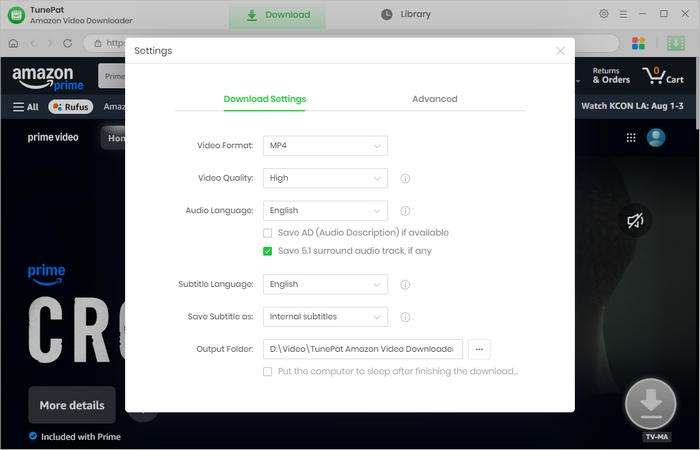
TunePat provides you with customizable output settings. Click the gear icon on the top right, and the "Settings" pane will open. You can choose an output format and output folder, pre-select video quality, and more.
Step 3 Search for Amazon Video to Download
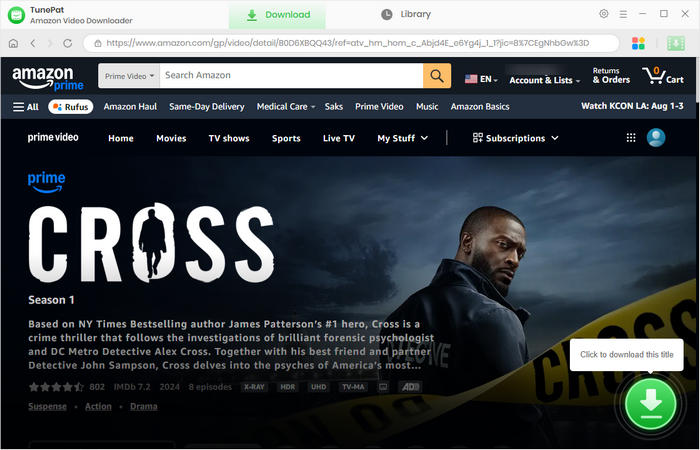
Browse Amazon's video library and open the movie or series you'd like to download. Click the green arrow icon to let TunePat parse the title.
Step 4 Choose Advanced Download Parameters
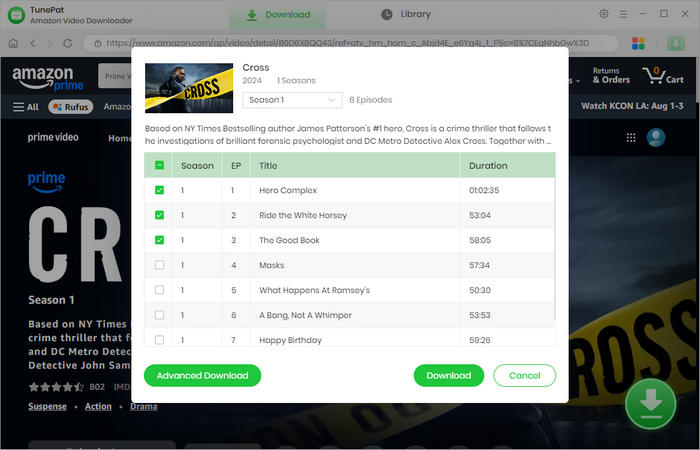
If you are downloading a TV show, you can select the season and episodes first. Then, click the "Advanced Download" button, and you can further choose specific video quality, audio tracks, and subtitles. If you are downloading a movie, you get the parameters once you click the green arrow.
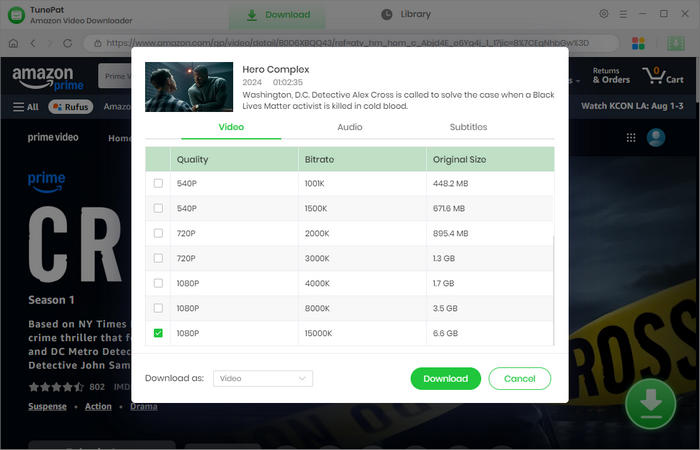
Step 5 Download Amazon Movies and Shows on Computer
Click the "Download" button, and TunePat will download movies and TV shows from Amazon Prime. When it's complete, you can click the "Library" tab to check your download history. And you can find the downloaded Amazon files on your local computer.
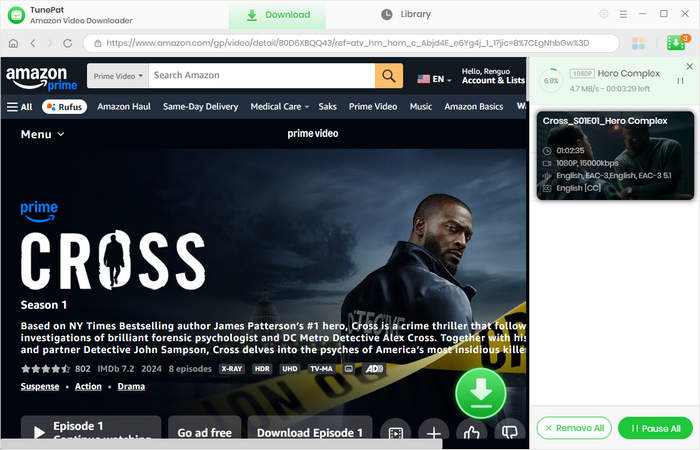
Upscale Amazon Videos to 4K from 1080P
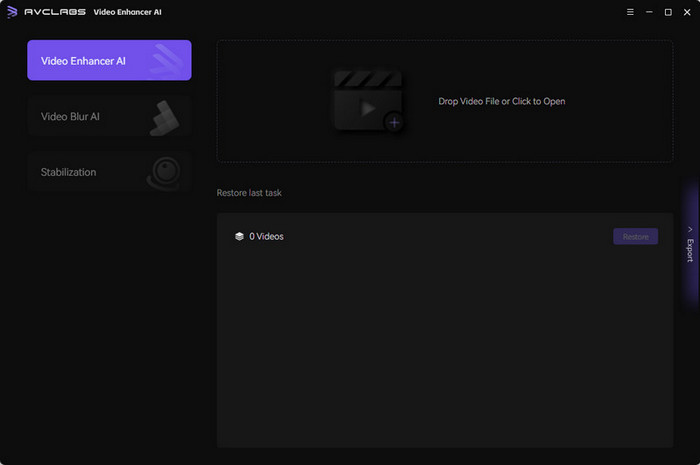
After downloading Amazon videos in 1080p, it's time to improve video quality. AVCLabs Video Enhancer AI offers a video-enhancing feature to upscale picture quality. Equipped with advanced AI technology, it can help you easily upscale video quality to 4K or 8K. With this tool, you can effortlessly upscale 1080p Amazon downloads to 4K, and then watch 4K Amazon videos offline.
Step 1 Download, install, and run AVCLabs Video Enhancer AI on your computer.
Step 2 Choose the video enhancer tab, then drag and drop the downloaded Amazon movie to AVCLabs.
Step 3 Select to upscale to 4K and customize some enhancing features to your preference.
Step 4 Click "Start Processing" and wait for a while. You will then get Amazon movies in 4K.
Note: To enjoy 4K videos, you need to ensure your device supports 4K playback. It can be a 4K monitor (e.g., Dell, ASUS), and high-end laptop (e.g., MacBook Pro, Dell XPS), a smartphone (e.g., iPhone 15 Pro, Samsung Galaxy S24 Ultra), or a tablet like the iPad Pro.
Part 4: FAQs about Amazon 4K Movies
How to watch Amazon Prime in 4K on PC?
Unfortunately, Amazon Prime doesn't allow 4K streaming on PC, even though your monitor supports 4K playback and display. The highest video quality available on PC is 1080p. To stream 4K Amazon videos, you have to use a smart TV, streaming device, or game console. Check Part 1 of this article to see which devices are supported.
Can I download Amazon 4K movies?
Yes, you can download Amazon 4K movies. However, you cannot save 4K quality from Amazon Video. At present, Amazon Prime Video doesn't support saving 4K for offline playback, and no Amazon downloader can save 4K. So the best way to watch Amazon movies in 4K offline is to download them in 1080p with TunePat and upscale the quality to 4K.
Conclusion
To watch Amazon 4K videos, you need an Amazon Prime or Prime Video subscription, a 4K-supported device, and a high-speed network. You can find Amazon 4K movies through the search and filter features. It is important to note that computers aren't allowed to stream 4K Amazon videos. But there is a workaround to watch Amazon 4K movies on PC, that is download the videos with TunePat Amazon Video Downloader and upscale video quality with AVCLabs Video Enhancer AI. Enjoy Amazon 4K movies on your computer now!

Amelia Gonzalez
Web Editor