Can You Screen Share Netflix on FaceTime? [Solved 2026]
 By Izzy Warren
Netflix Video Tips
Updated on 08/08/2025
By Izzy Warren
Netflix Video Tips
Updated on 08/08/2025
Though Netflix doesn't support SharePlay or a Watch Party, you can watch Netflix together with other workarounds. FaceTime offers a screen sharing feature, allowing people in a long-distance relationship to watch the same content simultaneously. Can you screen share Netflix on FaceTime? If so, how to watch Netflix on FaceTime? Check this article and find the best solution.
Contents
Part 1: Can You Screen Share Netflix on FaceTime
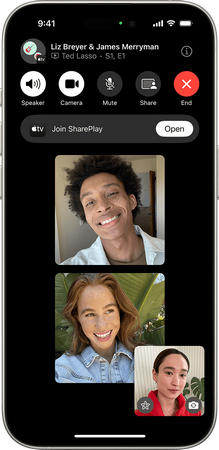
FaceTime has a screen share feature, which enables you to share your screen during the video call. Can you screen share Netflix on this app? Are there any limits? Generally speaking, you can screen share Netflix on FaceTime. Here are the steps.
Step 1 Start a FaceTime call with your friend.
Step 2 Tap the Share Content icon on FaceTime.
Step 3 Choose "Share My Screen" on your iPhone or iPad (or "Window" on Mac).
Step 4 Open Netflix and play a movie; all your friends in the call will see your screen.
Screen sharing Netflix is a convenient and practical way to enjoy shows or movies with friends, especially when you're not in the same room. Plus, your friends don't need their own Netflix subscription to join in. However, due to Netflix's content protection measures, you might run into issues like a black screen or other disruptions, making it difficult to watch together. Don't worry—there are solutions to this problem, which we'll explore in the next section.
Part 2: How to Screen Share Netflix on FaceTime
Although direct screen sharing of Netflix on FaceTime may not work, you can still enjoy Netflix content with friends by downloading videos as standard video files and streaming them on FaceTime. This method allows you to share a regular video file instead of Netflix streams, bypassing platform restrictions. As a result, you and your friends can seamlessly watch movies together online without encountering issues like the black screen.
TunePat Netflix Video Downloader is a video download expert for Netflix. It can download movies and shows from Netflix to computers, giving you plain video files in MP4 and MKV formats. These files are compatible with most media players and can be transferred to other devices, enabling you to watch Netflix content freely. You can screen share Netflix videos on FaceTime, Discord, or any other platform to enjoy them with friends. Plus, even if you cancel your Netflix subscription, the downloaded videos remain accessible.
Moreover, TunePat Netflix Video Downloader offers a professional and user-friendly experience. It supports downloading Netflix videos in 1080p resolution, ensuring a high-quality and immersive viewing experience. You can also preserve audio tracks and subtitles in multiple languages. For series, the tool allows batch downloading of entire seasons and episodes with just one click. With its fast download speed, TunePat saves you time and effort, making it an efficient solution for downloading and enjoying Netflix content.
Note: TunePat is a home edition and for personal use only.
Step 1 Sign in to Netflix on TunePat
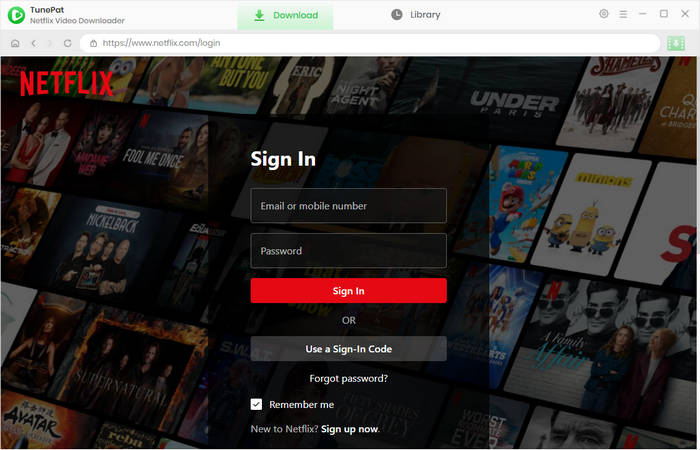
Install and run TunePat Netflix Video Downloader on your computer. TunePat offers both Windows and Mac versions, so you can screen share Netflix on FaceTime through a MacBook conveniently. You will then see the built-in web browser. Please follow the instructions to sign in to your Netflix account.
Step 2 Make Basic Settings
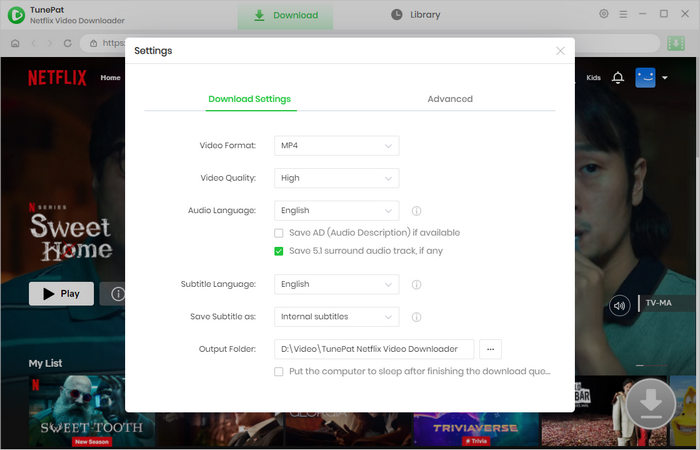
Click "Settings" in the top right corner. On the pop-up window, you can choose an output format, pre-set video quality, and the languages of audio and subtitles, and select an output path.
Step 3 Select Netflix Video to Download
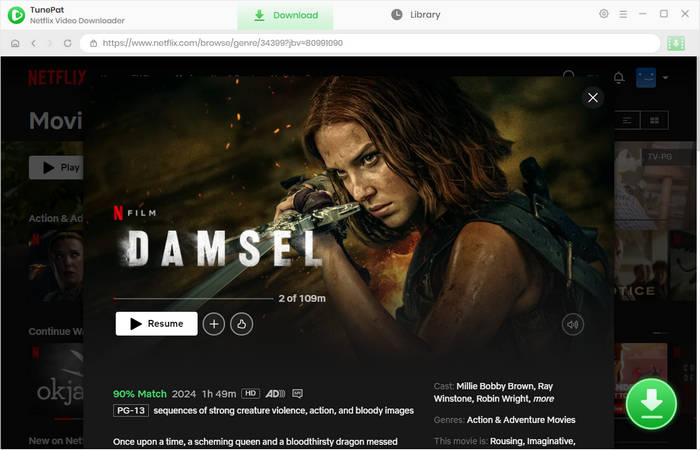
Go through the Netflix web browser and open the movie and episode you'd like to screen share on FaceTime. Click the green arrow to parse the title.
Step 4 Choose Advanced Download Settings
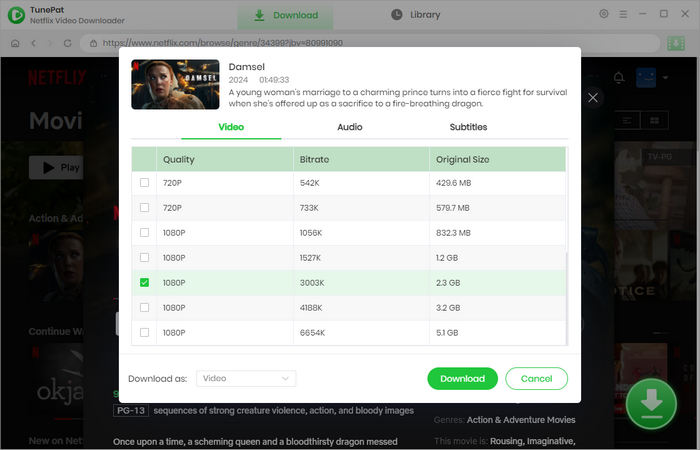
Now you can choose specific download settings, including video quality, audio tracks, and subtitles. If you are downloading a series, you are allowed to choose the season and episodes first, then click "Advanced Download" to get more options.
Step 5 Download Netflix Video to Computer
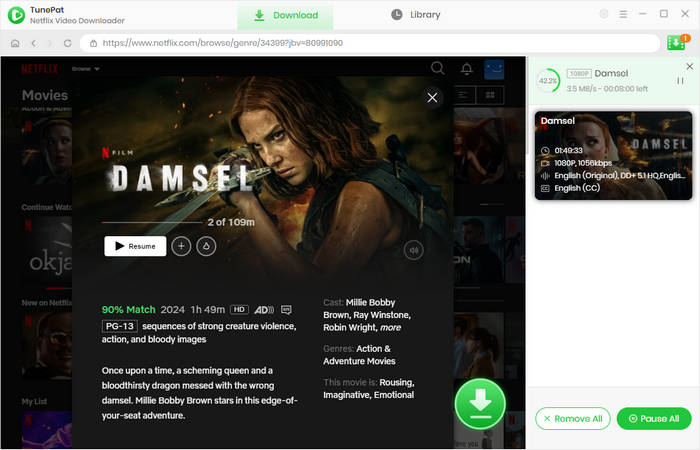
Click "Download" and TunePat will start to download Netflix videos to computers. During the process, you can add more titles to the download queue, and TunePat will proceed with them one by one.
Step 6 Screen Share Netflix on FaceTime on MacBook, iPhone, iPad
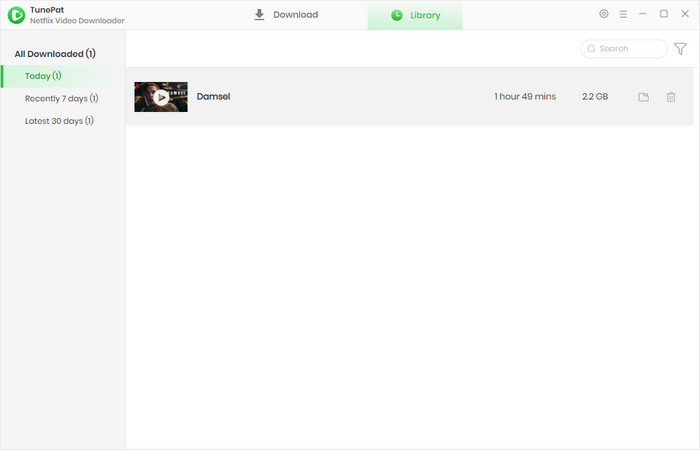
When the download is complete, you get video files on your computer. You can click the "Library" tab and the file icon to open the output folder. If you want to screen share Netflix on FaceTime on MacBook, simply have a voice call to play the video.
If you prefer to screen share Netflix in FaceTime on iPhone or iPad, transfer it to the device. When you have a FaceTime video call with your friends, tap the share content button and confirm to share. Play the Netflix movies on your mobile device, and then you can screen share Netflix on FaceTime without black screen.
Part 3: How to Watch Netflix Together [More Ways]
Apart from screen sharing Netflix on FaceTime, you have more ways to watch Netflix together with friends, regardless of long distance. You can screen share Netflix on Discord and use a watch party tool.
Screen Share Netflix on Discord to Watch Together
Discord offers you a screen share feature, which is similar to FaceTime and allows you and your friends to watch the same content at the same time.
Step 1 Open the Discord and Netflix app or website on your device.
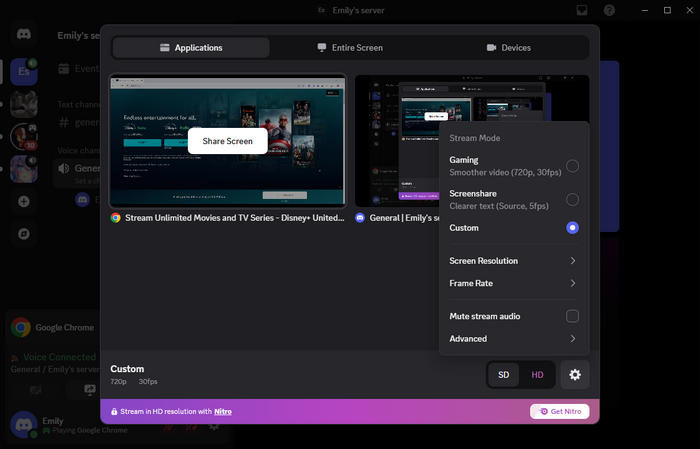
Step 2 Start a voice call and click to share your screen.
Step 3 Choose the Netflix screen and click to share it, and your friends will see your screen.
Netflix system may also detect that you share its content, resulting in a black screen. To get rid of the black screen, check How to Stream Netflix on Discord Without Black Screen.
Host Netflix Watch Party to Watch Together
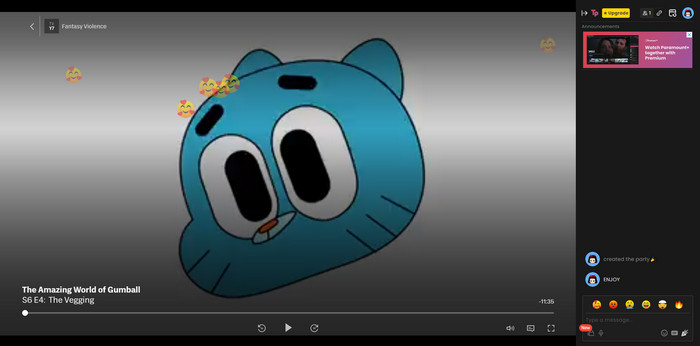
Although Netflix hasn't developed a watch party feature, there are many tools available. Such watch party tools allow you to watch specific shows or movies together in real time. In the session, you can also chat and have a video call. The most popular watch party tools for Netflix are Teleparty, Flickcall, and Scener.
Step 1 Install a watch party add-on on your web browser.
Step 2 Open the Netflix website and play the video you would like to watch.
Step 3 Click the add-on to start a watch party.
Step 4 Send your friends the invite link and ask them to join in.
Step 5 You can then watch Netflix together in real time.
Note: Both you and your friends are required to have a Netflix subscription to join a watch party.
Part 4: FAQs about Screen Sharing Netflix on FaceTime
Can you shareplay Netflix on FaceTime?
No, Netflix doesn't support SharePlay, so it's not possible to use it during a FaceTime call.
How to screen share Netflix on FaceTime without black screen?
To avoid the black screen issue, you can download Netflix videos in standard video formats using tools like TunePat. The black screen occurs because of Netflix's content protection measures, which block direct screen sharing of its streams. By downloading the videos as regular video files, you can screen share them without triggering the protection, ensuring a smooth viewing experience.
Why can't I screen share Netflix on FaceTime?
Screen sharing Netflix on FaceTime is restricted because it possibly violates Netflix’s copyright policies. To enforce this, Netflix uses specialized technology that detects and blocks screen sharing attempts. When you try to share Netflix content on FaceTime, Discord, or similar platforms, the screen turns black as a protective measure to prevent unauthorized distribution of its content.
Conclusion
You can screen share Netflix on FaceTime, but this can possibly cause a black screen, making it difficult to watch movies with friends over the Internet. Fortunately, you can screen share Netflix on FaceTime without black screen with the help of TunePat Netflix Video Downloader. By downloading Netflix videos with TunePat, you get plain video files, so that you can screen share Netflix on FaceTime anytime. Download TunePat and share videos easily!




Izzy Warren
Content Writer