How to Stream Disney Plus on Discord to Watch Together
 By Izzy Warren
Disney Plus Video Tips
Updated on 7/30/2026
By Izzy Warren
Disney Plus Video Tips
Updated on 7/30/2026
Can you stream Disney Plus on Discord? Discord offers rich-feature services, enabling you to chat, listen to music, and have fun. You may have heard that you can watch Disney+ movies with friends over the Internet. Yes. You can indeed stream Disney+ on Discord. In this article, we will show you the best 3 methods on how to stream Disney Plus on Discord. Read on, and you'll get streaming Disney+ on Discord without black screen.
Contents
Method 1: Stream Disney Plus on Discord via Screen Sharing Disney+
The easiest way to stream Disney Plus on Discord is to screen share Disney+. Discord has a screen share feature, which allows you to share the screen of the Disney+ app or web browser on your device. By clicking the screen share button, all of your friends on the voice call can see your screen, so that you can watch the same movie simultaneously, as if you are on the same sofa.
How to Screen Share Disney Plus on Discord
- Run Discord and click the gear icon "User Settings".
- On the new screen, scroll down to click "Registered Games".
- Click the blue text "Add it".
- Select "Google Chrome" (or the Disney+ app if available) and click "Add Game".
- Play the movie you'd like to share with friends on Chrome (or the Disney+ app).
- Go to the server where both you and your friends are and start a voice call.
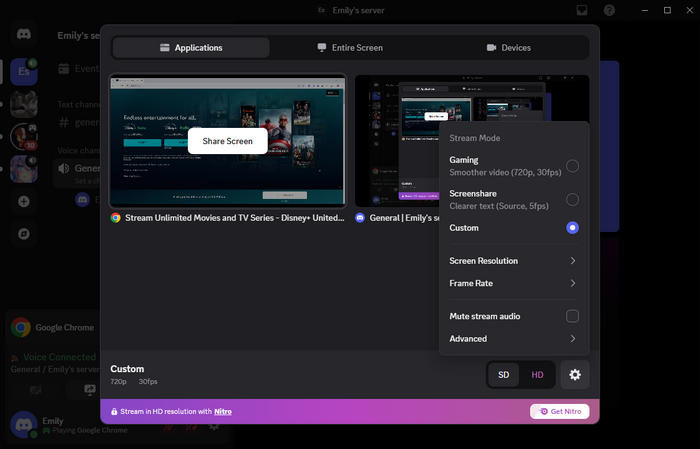
- Click the button "Share Your Screen".
- Choose Chrome on the pop-up window, and your friends will see your Chrome screen. (Click the gear icon if you need to customize the streaming.)
✔ Pros
- Stream Disney+ easily.
- No third-party tools are needed.
- Friends don't need a Disney+ subscription.
✘ Cons
- Disney+ may show a black screen while being streamed on Discord.
How to Stream Disney Plus on Discord Without Black Screen
You possibly encounter a black screen when streaming Disney Plus movies on Discord. Sometimes, your friends get the subtitles only, and the video cannot be seen. Why is Disney Plus black screen on Discord? In short, Disney+ applies technology to prevent its content from being shared, ensuring the security of the content. So, how to screen share Disney Plus on Discord without a black screen? One of the best solutions is turning off hardware acceleration before streaming.
Note: Disabling hardware acceleration sometimes doesn't work. To stream Disney Plus on Discord without a black screen at all, please refer to Method 2.
Step 1 Disable the Hardware Acceleration of Web Browser
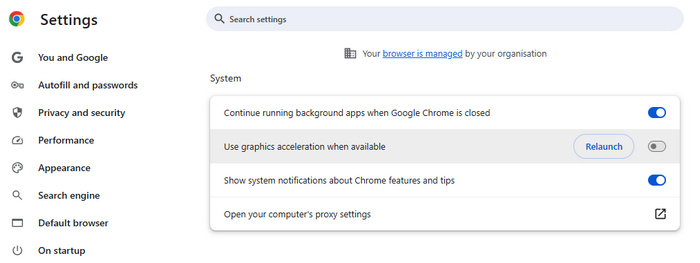
- If you use Chrome: Open the "Settings" pane and choose "System". Toggle off "Use graphics acceleration when available" and click "Relaunch".
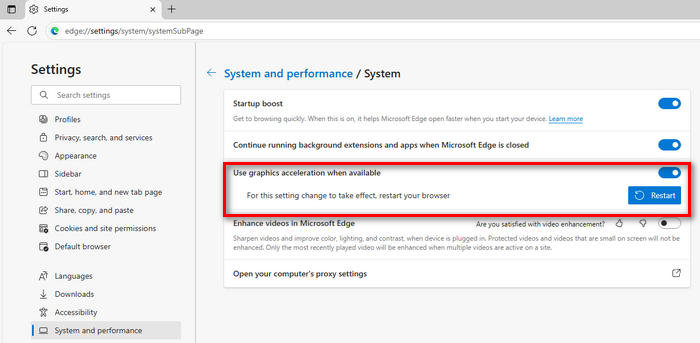
- If you use Edge: Click "Settings" > "System and performance" > "System", turn off "Use graphics acceleration when available", and then click "Restart".
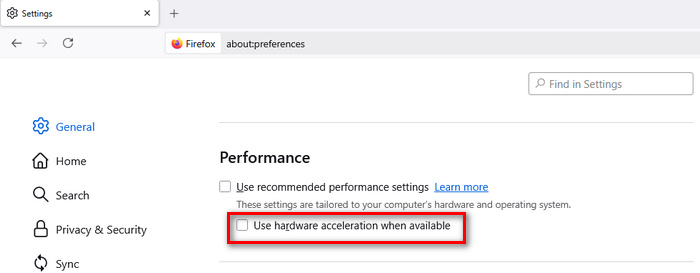
- If you use Firefox: Choose "Settings" > "General". Scroll down to find the Performance section. Disable "Use recommended performance settings" and deselect "Use hardware acceleration when available".
Step 2 Turn off the Hardware Acceleration of Discord
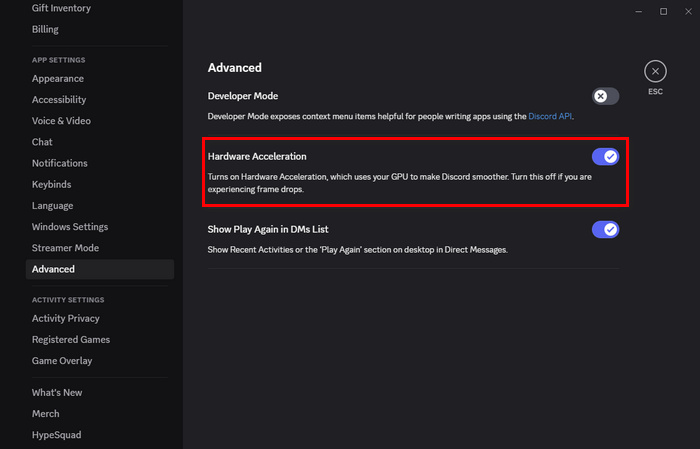
Click the "User Settings" icon. On the new screen, scroll down to find the "Advanced" tab under the APP SETTINGS section. Click to toggle off "Hardware Acceleration", and then choose the button "Change & Restart", which will fix the visual problem of the black screen.
Method 2: Stream Disney Plus on Discord via Screen Sharing Media Player
To stream Disney Plus on Discord, screen sharing media player is the best method. In this way, you'll never encounter a black screen.
As we all know, Disney Plus cannot be directly played with a media player on your computer or mobile phone. This service is available only inside its app and web browser. But now you get an effective solution — TunePat DisneyPlus Video Downloader.
TunePat DisneyPlus Video Downloader is specifically designed to download movies and TV series from Disney Plus to computers. This tool applies advanced technology to extract Disney Plus content and save it in standard MP4 or MKV format. The downloaded videos are plain video files and can be played by any compatible media player on your computer.
In addition, TunePat offers you a rich-featured download experience. It allows you to download Disney Plus movies in HD quality, ensuring you and your friends have a clear streaming experience. TunePat also supports preserving audio tracks and subtitles in multiple languages, so that you can switch to different languages.
Note: TunePat is a home edition and for personal use only.

How to Stream Disney+ on Discord Without Black Screen
Step 1 Log in to Disney Plus
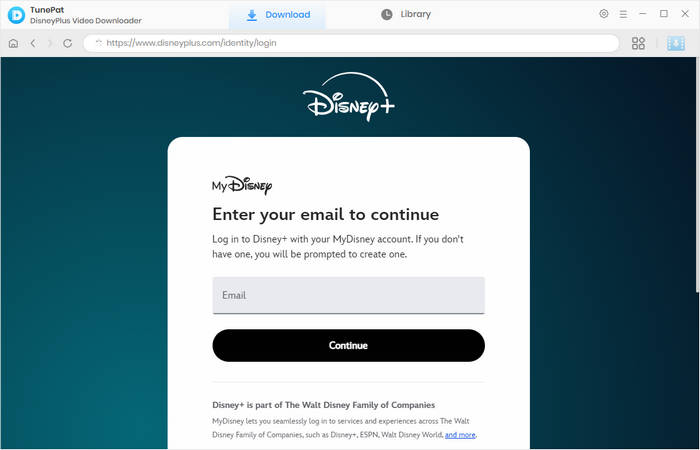
Run TunePat DisneyPlus Video Downloader on your computer. Choose to open the built-in Disney+ web browser. Then follow the tips to log into your account.
Step 2 Customize Output Settings
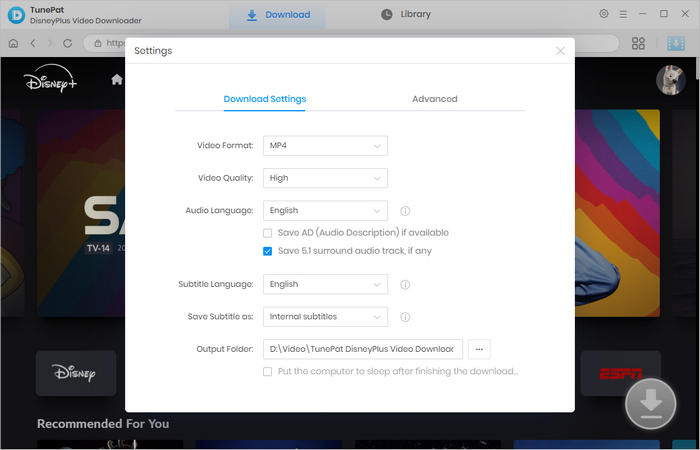
TunePat allows you to download Disney+ movies with your preferred parameters. Click the gear icon "Settings". You can choose an output format, pre-select video quality and the language of audio and subtitles, and designate an output folder.
Step 3 Choose Your Favorite Disney Plus Video
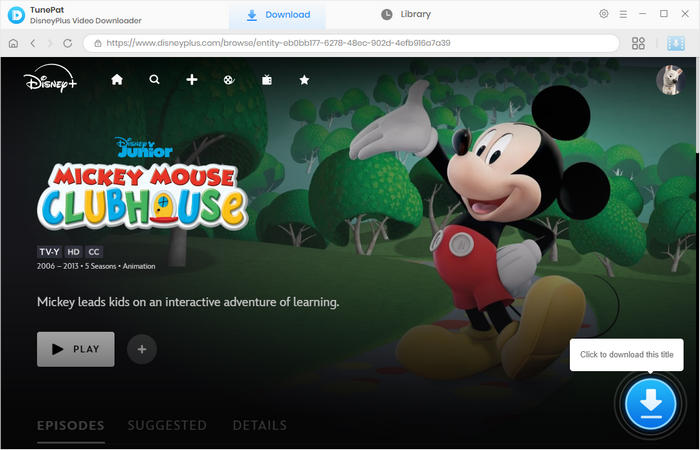
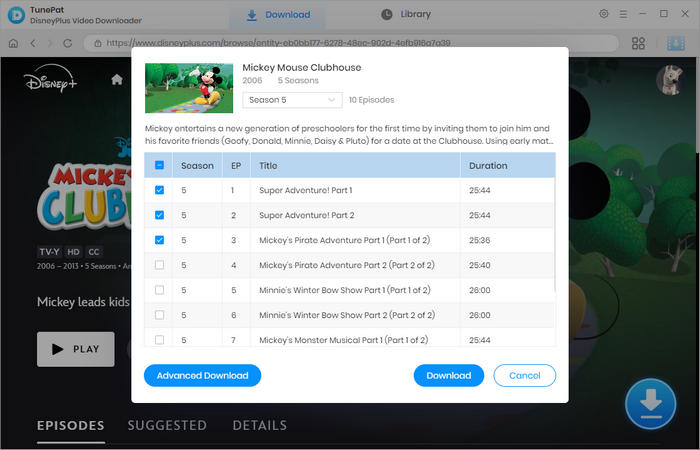
Browse the built-in web browser and open the movie or series that you'd like to stream on Discord. Click the downward arrow, and TunePat will parse the video. If you are downloading a series, you can select a specific season and episodes.
Step 4 Select Advanced Downloaded Settings
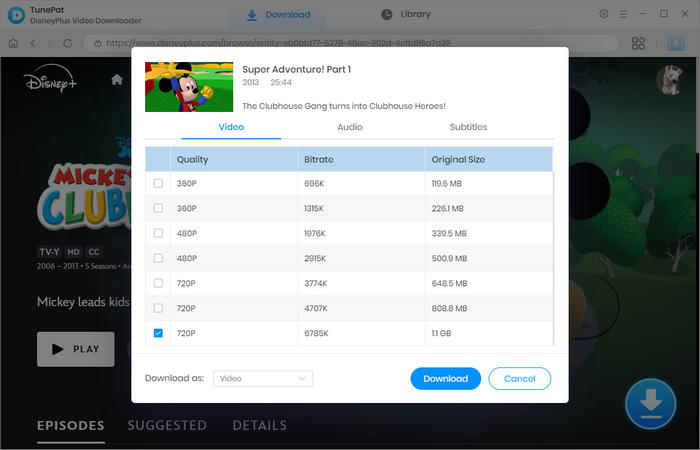
Select the video quality, audio tracks, and subtitles you'd like to save. Click "Advanced Download" to get the options when downloading TV series.
Step 5 Download Disney Plus Movie to Computers
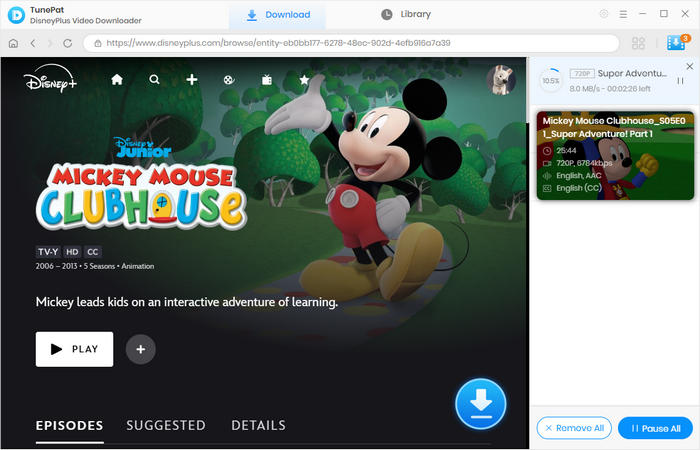
Click the "Download" button to start downloading movies or series from Disney+. When it's complete, you will find the video files in your local folder.
Step 6 Stream Disney Plus on Discord Without Black Screen
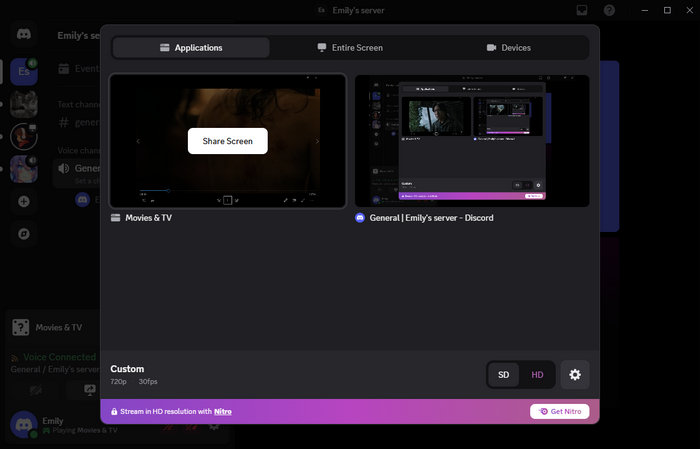
Open Discord and click "User Settings" > "Registered Games" > "Add it". Select to add "Movies & TV" or any media player, then click "Add Game".
Go to the server where both you and your friends are. Click to start a voice call and share the screen of "Movies & TV". You will successfully stream Disney Plus movies on Discord without a black screen. You can now enjoy Disney+ movies with your friends simultaneously.
✔ Pros
- A black screen won't appear while streaming on Discord.
- Your friends are not required to subscribe to Disney+ to watch.
- Downloaded videos can be kept forever, allowing you to stream on Discord, even without a Disney+ subscription.
- Downloaded movies can be transferred to mobile devices and shared with friends there.
✘ Cons
- Require you to download TunePat on your computer.
Method 3: Stream Disney Plus on Discord via Flickcall
Flickcall helps you stream Disney Plus on Discord with less black screen. Flickcall is a watch party tool that allows you and your friends to watch the same Disney+ movie at the same time, along with real-time chat and voice calls.
When using Flickcall, the video URL is changed. The movie is embedded on the watch party tool. Thus, it is less likely that a black screen appears while streaming Disney+ on Discord. But it's important to note that this way doesn't always work, since the source streaming is from Disney+. Refer to Method 2 if you prefer to completely fix the black screen.
Note: Flickall and other watch party tools allow you and your friends to watch movies together, but any participant of the party must have a Disney+ subscription.
How to Screenshare Disney Plus on Discord
- Install the Flickall extension on your browser.
- Open the Disney+ website and play the movie you'd like to screen share.
- Click the Flickall icon and choose "Start Flickcall" and "Start Party".
- Run Discord and join a voice call.
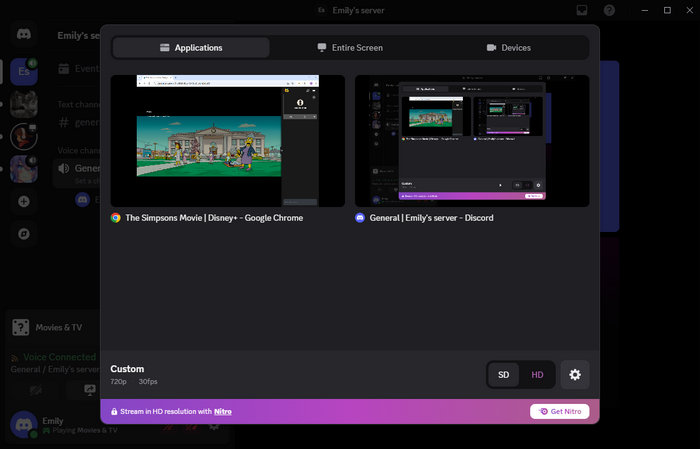
- Click "Share Your Screen" and choose to share the screen of Flickcall.
✔ Pros
- Your friends don't have a Disney+ subscription.
- Less likely to cause a black screen while streaming Disney+ on Discord.
✘ Cons
- Require you to install the browser extension.
FAQs about Streaming Disney Plus on Discord
How to stream Disney Plus on Discord mobile?
Open the Discord app on your mobile device and join a voice call. Swipe up the call's screen from the bottom. Choose "Share Your Screen". From the pop-up window, select "Start Broadcast". The app will show that you're sharing your screen. Finally, open the Disney+ app or web browser and play a movie. You'll successfully stream Disney Plus on Discord.
How to stream Disney Plus on Discord Mac?
Discord offers an app for Mac, but there is no standalone Disney+ app for Mac, so Mac users can stream Disney Plus web browser using the Discord app. Check Method 1 of this article to learn how to stream Disney+ on Discord Mac.
Can you screen share Disney Plus?
Disney Plus doesn't have a screenshare button, so you must turn to some apps. The most popular method to screen share Disney+ is using Discord, which doesn't require your friends to have a Disney+ subscription. However, you may encounter a black screen while streaming Disney+ on Discord. It is better to download Disney+ movies with TunePat and screen share the content on Discord.
Conclusion
Streaming Disney Plus on Discord allows you and your friends to watch the same movie, despite location and subscription. In general, there are 3 methods available. Discord has a screen share feature, with which you can directly share Disney+ for free. If you worry about the black screen, try to play the movie with Flickcall, a watch party tool, and then stream it on Discord. To stream Disney Plus on Discord without a black screen at all, using TunePat DisneyPlus Video Downloader and screen sharing media player is the best option. Let TunePat help you stream Disney Plus on Discord now!



Izzy Warren
Content Writer