How to Remove Disney Plus Ads [4 Effective Ways]
 By Izzy Warren
Disney Plus Video Tips
Updated on 7/30/2026
By Izzy Warren
Disney Plus Video Tips
Updated on 7/30/2026
Disney Plus ads always appear when you are immersed in movies and series. While the ad-supported plan offers access to a wide range of content, you may prefer an uninterrupted viewing experience. Is there any way to remove Disney Plus ads? How to get rid of ads on Disney Plus? Continue reading to discover the 4 effective ways.
Contents

Method 1: Use Disney+ Kids Account to Remove Ads on Disney Plus
According to statistics, the ads-to-show ratio is nearly 1:3 on Disney Plus, which is higher than watching live TV and unacceptable for many subscribers. The good news is that since there are laws or something about advertising to children, using a kid's account can significantly reduce Disney Plus ads to about 20 seconds per episode—and in some regions, no ads appear at all.
How to Get a Kids Account on Disney+ to Remove Ads
Disney+ provides users with several parental control features for their use. Among them, the Junior Mode helps you create a kid's account.
Step 1 Open the Disney+ app or web browser on your mobile phone, computer, or smart TV.
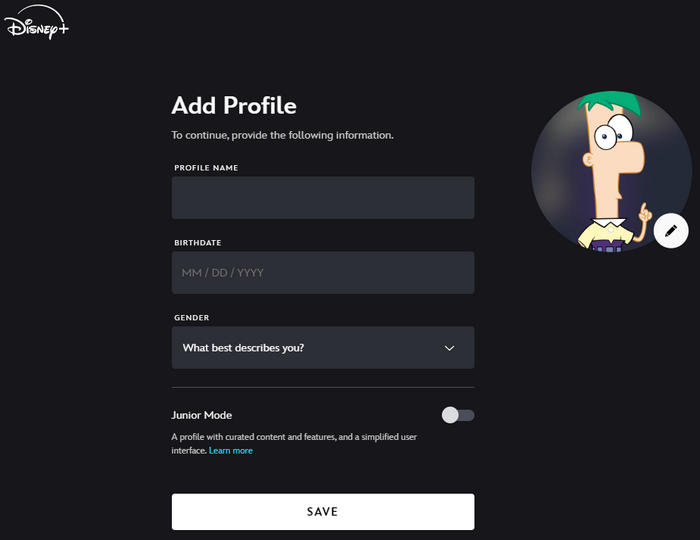
Step 2 Click your profile icon and select "Add Profile".
Step 3 Follow the prompts to set up an avatar, profile name, date of birth, and gender.
Step 4 Turn on "Junior Mode" and click "Save".
Step 5 If you are not going to add a new profile, choose a profile to enable the Junior Mode.
Step 6 You can then have a kids account and won't see any ads while watching.
Note: Under the Junior Mode, you can get rid of ads on Disney Plus completely, but it filters titles for a kids account to ensure the content is appropriate for all age groups.
Method 2: Download Disney+ Videos to Remove Disney Plus Ads
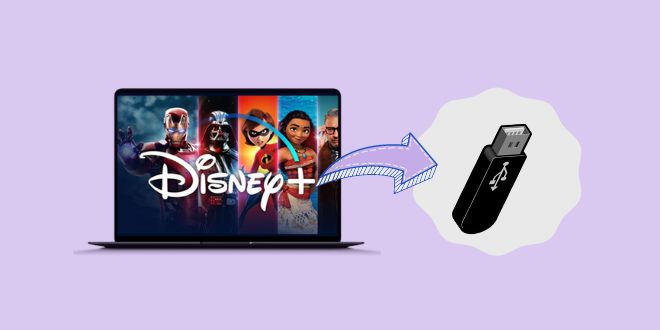
When streaming videos online on Disney Plus with an ad-supported account, you encounter many commercial interruptions. Fortunately, Disney Plus ads can be removed if you watch the downloaded content. Can you download with Disney Plus Ads plan? Definitely yes.
TunePat DisneyPlus Video Downloader enables you to easily download Disney+ movies with the Ads account, helping you watch Disney Plus without ads offline. It is a professional tool for Disney Plus video download. Whether you are using a Disney+ Premium or Basic with Ads account, TunePat downloads videos from the platform to your computer. If you use the Basic account, TunePat intelligently removes all the ads and outputs pure content only, allowing you to watch Disney+ videos without ads offline.
In addition, TunePat is a versatile program, and you can obtain a great user experience. It supports saving HD quality of Disney+ videos, ensuring a crystal-clear playback. You can also download Disney Plus videos in MP4 or MKV format standardly, so the downloads can be kept permanently on your computer and easily transferred to your other device. It also preserves audio tracks (including 5.1 audio) and subtitles in multiple languages, meeting your various demands.
Note: TunePat is a home edition and for personal use only.

How to Download Disney+ Videos to Watch Without Ads
Step 1 Log in to Disney Plus
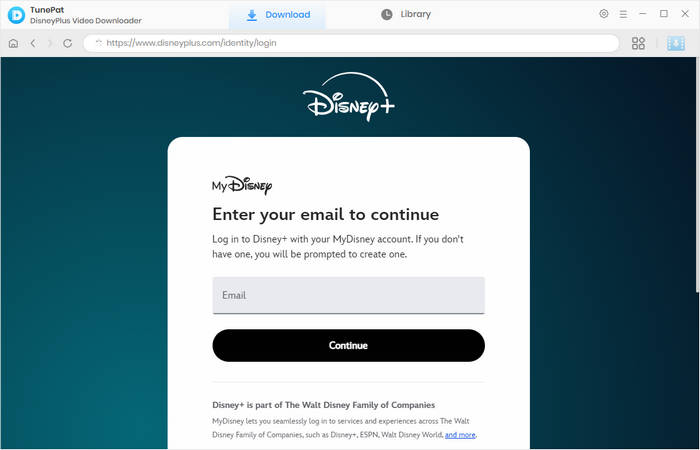
Start TunePat DisneyPlus Video Downloaders on your computer. Choose the Disney Plus portion and log in to your account on the built-in web browser. TunePat supports Disney+ with Ads and no Ads account.
Step 2 Customize General Output Settings
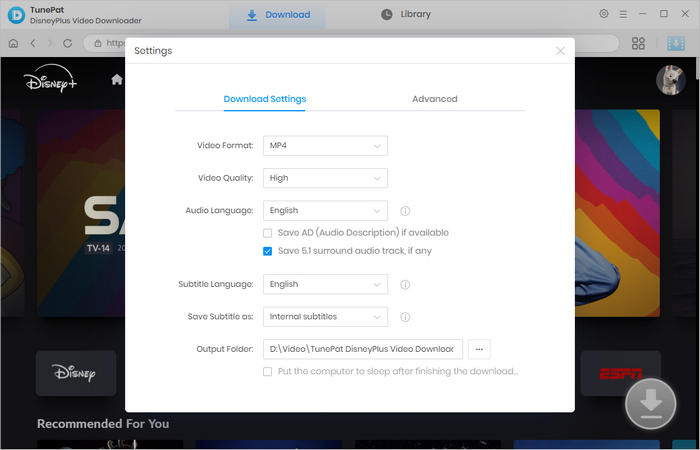
TunePat offers you many customizable settings for outputting videos. Click the "Settings" icon to open the panel. You can then choose an output format, pre-set video quality and the languages for audio and subtitles, and designate an output folder.
Step 3 Choose Disney+ Videos to Download
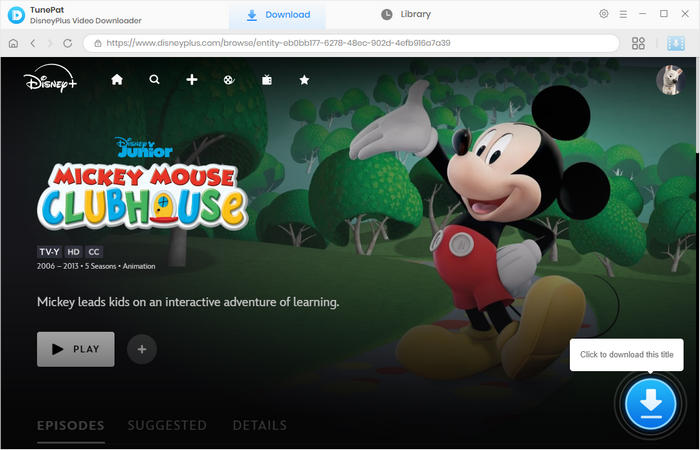
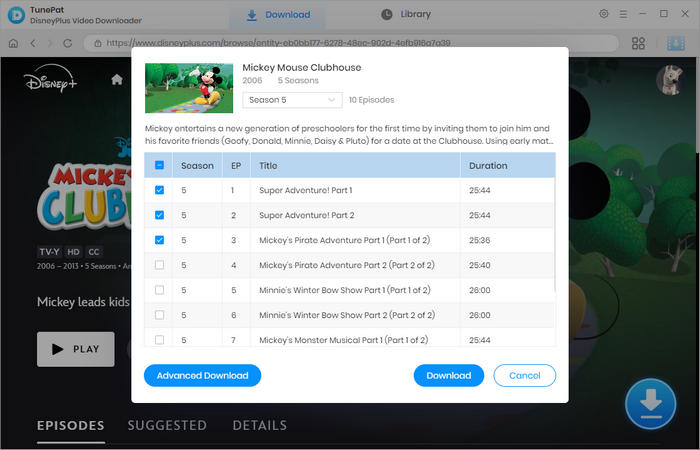
Browse Disney+'s library and open the movie or series you'd like to download. Click the blue arrow on the bottom right, letting TunePat parse the title. If you are parsing a series, you can choose the season and episodes.
Step 4 Select Advanced Download Parameters
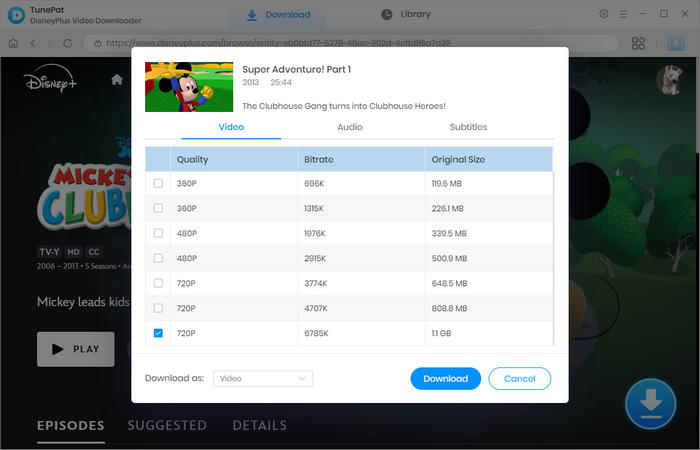
On the pop-up window, you can select specific video quality, audio tracks, and subtitles. Multiple audio tracks and subtitles can be selected. If you are downloading a series, click "Advanced Download" and you will get the options.
Step 5 Download Disney Plus Videos to Computers
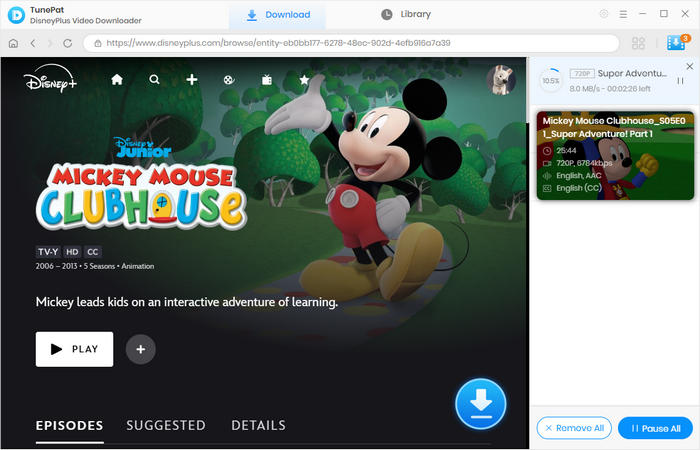
Click the "Download" button, and TunePat will start the Disney Plus video download. During the process, TunePat filters out any possible ads and saves only the real video content. When it's complete, you get plain video files without ads.
Method 3: Use Disney Plus Ad Blocker to Skip Disney Plus Ads
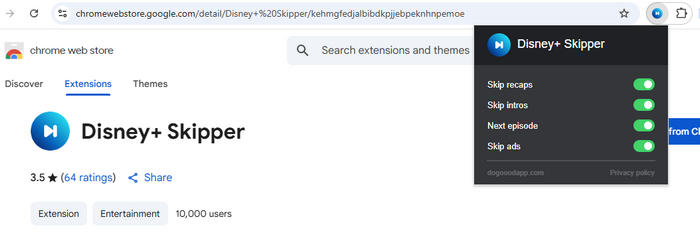
Disney Plus ads can be effectively removed by ad blockers. To meet the demands of blocking ads on Disney Plus, many tools have been developed. Such tools either skip Disney Plus ads or turn the ads into a black screen to prevent them from being watched. Among the tools, Disney+ Skipper is particularly useful for its ability to skip ads, intros, and recaps, unlocking a seamless and smooth streaming.
How to Remove Disney Plus Ads with an Ad Blocker
Step 1 Search for "Disney+ Skipper" and install the extension on your web browser.
Step 2 Click the add-on on the toolbar and enable ad-skipping options to your preference.
Step 3 Open the Disney Plus website, play a video, and the ads will be skipped automatically.
Method 4: Upgrade to Disney Plus Premium to Get Rid of Disney Plus Ads
If you have enough budget, upgrading to the Premium plan is the most straightforward way to remove Disney Plus ads. By doing so, ads will not interrupt your streaming, and you can have a seamless and smooth watching experience; you can also enjoy offline playback.
How to Upgrade to Disney+ Premium to Enjoy Ad-Free Watching
Step 1 Open the Disney Plus app or web browser and sign in.
Step 2 Click on your profile and select "Account".
Step 3 Under the "Your Plans & Billing" section, choose the Basic plan.
Step 4 Select "Change" next to the name of your subscription.
Step 5 Choose the Premium plan and tap "Continue" to upgrade.
Note: Please note that the ad-free Disney+ subscribers may see ads during live sports and 24/7 channels.

FAQs about Disney Plus Ads
Does Disney Plus have ads?
Yes, Disney Plus has ads for Basic plan subscribers. The users will see ads when streaming videos on the platform, and the ratio of ads to shows reaches nearly 1:3.
Why does my Disney Plus have ads?
Your Disney Plus has ads when you are subscribing to the Basic plan of Disney+ or Disney+ Bundle. You may also see ads when watching live sports or a 24/7 channel, even if you have a no-ads plan.
How to get no ads on Disney Plus?
To get no ads on Disney Plus, you have 4 effective ways. You can use a kids account, download the videos to enjoy ad-free playback, utilize an ad blocker, or upgrade to the Premium plan. This article introduces the methods in detail.
Conclusion
Commercials are unavoidable if you subscribe to the Basic plan, but you can remove, skip, or get rid of Disney Plus ads effortlessly. This article offers you 4 helpful ways, whichever you choose, you can always enjoy ad-free watching. Meanwhile, using TunePat DisneyPlus Video Downloader to download Disney+ videos can further enhance your viewing experience. In this way, you can enjoy ad-free shows and movies anytime, anywhere. Try TunePat and unlock unlimited ad-free watching!




Izzy Warren
Content Writer