
Have you ever clicked a YouTube link only to be met with a "Video unavailable" message? Losing access to a deleted YouTube video can be frustrating. Thankfully, there are still effective methods to track down and recover deleted YouTube videos. In this guide, we'll walk you through several reliable ways on how to find deleted YouTube videos. We'll also share a proactive tip to help you prevent losing favorite videos, using tools like a YouTube video downloader for preservation. Read on.

Contents
Part 1. How to Prevent YouTube Videos from Being Lost
Before diving into the recovery methods, let's first discuss the most fundamental solution. Instead of trying to find deleted YouTube videos after they disappear, a more proactive approach is to save them in advance using a reliable YouTube video downloader.
TunePat VideoGo All-In-One is a comprehensive desktop tool designed to download video from YouTube, Netflix, Prime Video, Disney+, and over 1,000 other sites directly to your computer. It allows you to download YouTube videos in high quality, preserving up to 8K resolution when available. It saves videos in universal MP4 or MKV formats with multilingual audio tracks and subtitles. Additionally, it supports batch downloading and hardware acceleration. By using this tool to download YouTube videos as a preventative measure, you shift from reacting to loss to proactively preserving the content that matters most to you.

TunePat VideoGo All-In-One
- Download movies and shows from Netflix, Amazon Video, Disney+, and other streaming services in batches.
- Free download videos from YouTube, Abema, etc.
- Preserve HD videos in MP4/MKV format at high speed.
- Retain multilingual subtitles and audio tracks (including 5.1 audio).
- Select video quality, audio tracks, and subtitles as you wish.
- Get permanent offline playback for movies and shows at any time.
Step 1 Select the YouTube Website
Open TunePat VideoGo All-In-One on your computer. From the main interface, select the "YouTube" option. TunePat will open a built-in browser for YouTube. You do not need a YouTube Premium subscription to use this download feature.

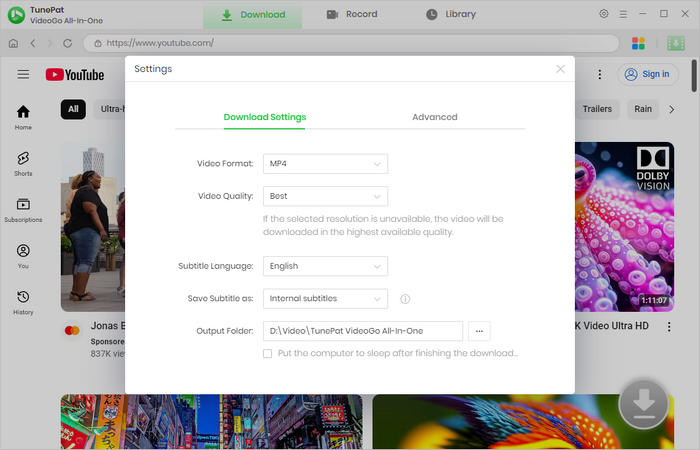
Step 2 Choose General Output Settings for YouTube Videos
Before downloading, click the gear icon in the top right corner to configure your default settings. Here, you can set your preferred video format, quality, audio & subtitle language, choose an output folder on your computer, and adjust other general parameters for your downloads.
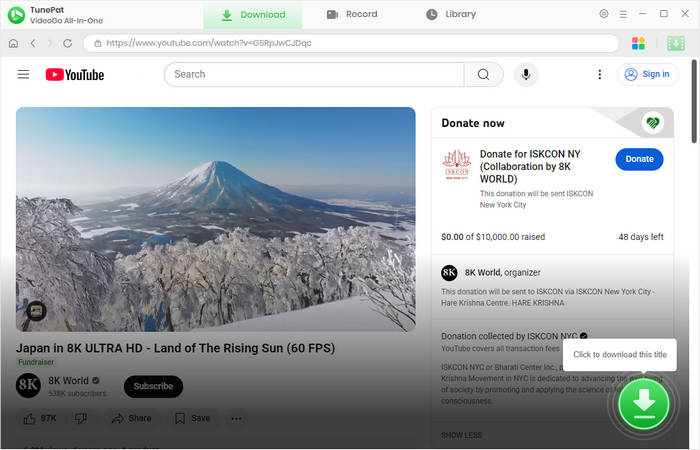
Step 3 Find YouTube Videos to Download
Navigate to the specific YouTube video you wish to download. You can either paste the video's URL directly into the program's search bar or browse YouTube within the built-in player. Once the video page loads, click the green "Download" button in the bottom right to analyze the video.
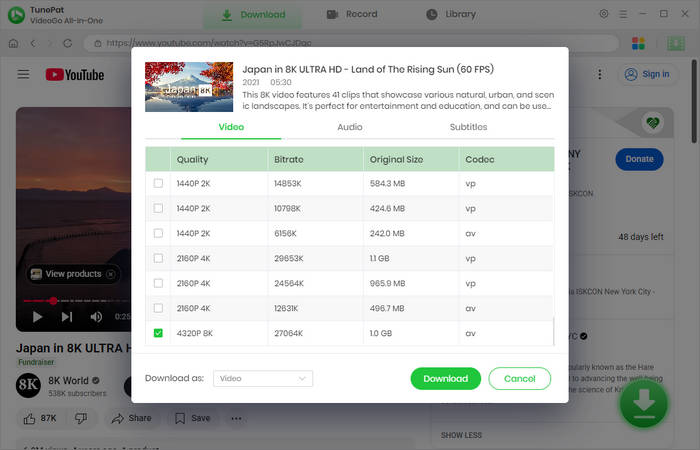
Step 4 Start to Download YouTube Videos
After parsing, a window will appear with the video details. Select your preferred video resolution, audio track, or subtitle language, then click the "Download" button to initiate the download.
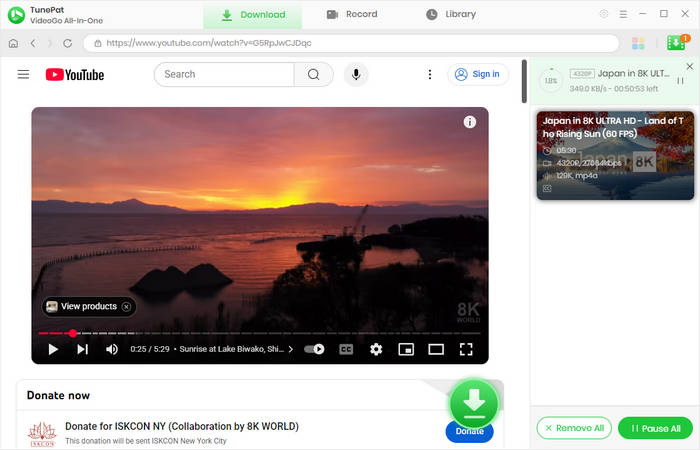
Step 5 Watch YouTube Videos on PC Offline
Once the download is complete, you can find all your saved videos by clicking on the "Library" tab within TunePat. From there, you can open the local folder containing your video files. Your YouTube videos are now stored on your PC and ready for offline viewing anytime.
Part 2. 6 Ways to Find Deleted YouTube Videos
While prevention is ideal, there are still several strategies you can employ if a YouTube video is already deleted. The following six methods provide a practical guide on how to find deleted YouTube videos.
Method 1: Check Download Records
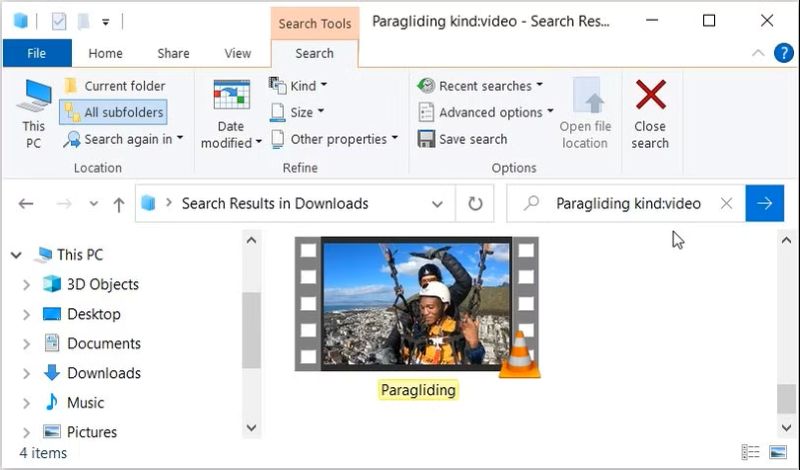
Before turning to the web, it's worth checking your own computer. When you download video from YouTube, the downloaded files are often stored locally in designated folders. This method involves searching the video in these locations on your device, as you might be able to recover deleted videos from these residual files without needing an internet connection, especially if you had previously saved the video.
Step 1 Search your default download folder and any folders used by download managers, like Internet Download Manager.
Step 2 Check the cache folders of your web browser for temporary video files.
Step 3 Look through the history or library of any dedicated video downloader software you use.
Method 2: Use the Wayback Machine
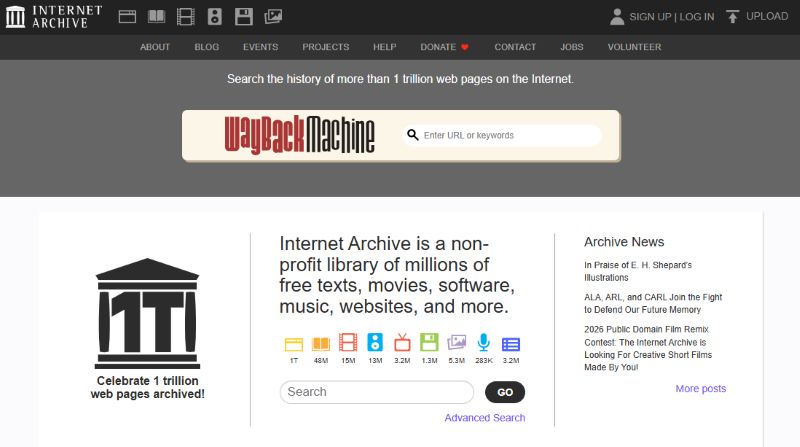
If you have the original web address of the missing video, one of the most reliable methods to view deleted YouTube videos is to use the Wayback Machine. This digital archive, run by the Internet Archive, automatically saves snapshots of web pages over time. If the YouTube video page was archived before deletion, you might be able to access deleted YouTube videos directly through this historical record. Here is a step-by-step guide on how to find old YouTube videos that were deleted using this tool.
Step 1 Find the original link to the deleted video. Check your browser history, old bookmarks, shared links in messages, or public playlists where it might still be listed.
Step 2 Open your web browser and navigate to the official website: archive.org.
Step 3 Enter the complete YouTube video URL into the search bar on the Wayback Machine's homepage and press "Enter".
Step 4 A calendar view will appear, with highlighted dates indicating when the page was archived. Click on a highlighted date that is before the video was deleted.
Step 5 The archived YouTube page will load. If you're lucky, the video player will be functional, allowing you to watch it directly. Try different snapshot dates if the first one doesn't work.
Method 3: Use a YouTube Video Finder
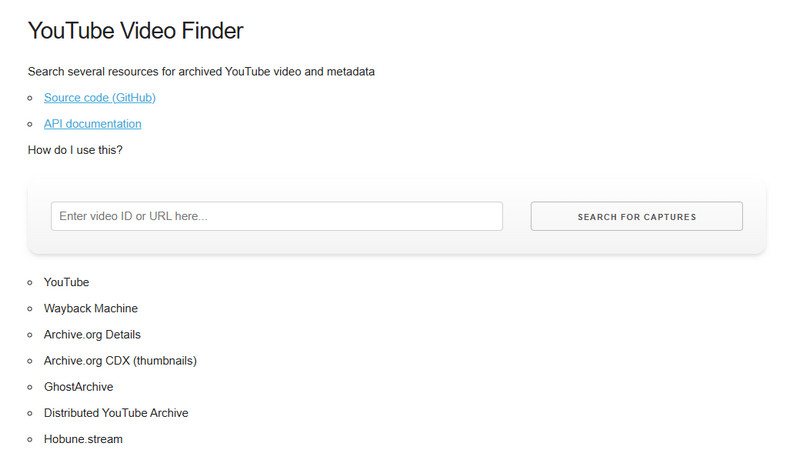
If manually searching archives seems daunting, specialized online tools can streamline the process. Websites known as YouTube Video Finders are designed to find old YouTube videos that were deleted by scanning multiple public archives and databases simultaneously. You simply provide the video URL or ID, and the tool aggregates results from places like the Wayback Machine, presenting any found snapshots in one place.
Step 1 Go to a dedicated video finder website, like YouTube Video Finder (https://findyoutubevideo.thetechrobo.ca/).
Step 2 In the YouTube Video Finder's search box, paste the full URL or the unique video ID of the deleted YouTube video.
Step 3 Initiate the search. YouTube Video Finder will automatically query several public archives, like the Wayback Machine or other specialized databases, and present the results.
Step 4 If YouTube Video Finder finds an archived snapshot, follow the provided link. You may be able to watch the video directly on the archive page or recover its metadata for further searching.
Method 4: Search for Reuploads or Mirror Versions
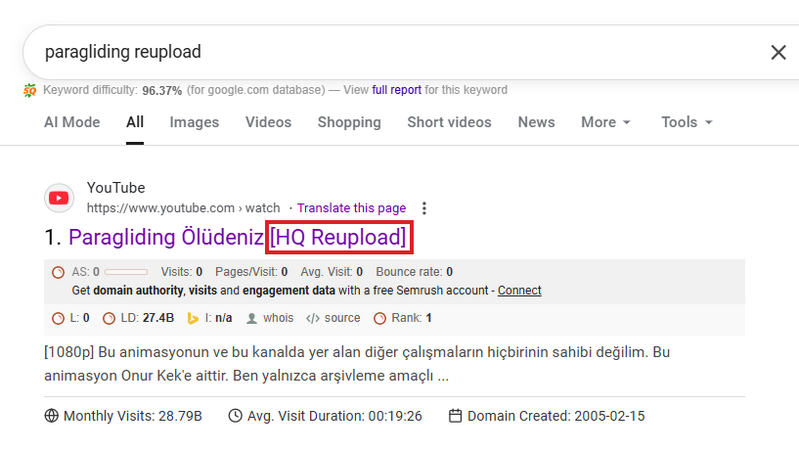
Popular videos rarely disappear completely. Often, other users download and reupload them elsewhere. This method focuses on using search engines to find these mirror copies. By searching for the exact video title along with keywords like "reupload" or "mirror", you can easily see deleted YouTube videos that have been reposted on YouTube itself or on other video platforms.
Step 1 Use the exact video title along with keywords like "reupload," "mirror," "backup," or "copy" in Google or YouTube's search bar.
Step 2 Extend your search to other video platforms like Vimeo, Dailymotion, or social media sites (Facebook, Twitter) using the same keywords.
Step 3 Browse the results and verify that the content is a complete and authentic copy of the original.
Method 5: Ask Internet Communities and Forums
When your own searches come up short, tapping into collective knowledge can be useful. There are often members who excel at tracking down lost media in online communities dedicated to archiving or specific niches. Politely asking for help on platforms with as much detail as you can provide is a proven strategy to recover deleted videos on YouTube through shared effort and expertise.
Step 1 Visit communities on platforms like Reddit, such as "r/lostmedia" and "r/DataHoarder".
Step 2 Create a detailed post, including any information you have: the video's title, channel name, topic, approximate upload date, and any describing details.
Step 3 Engage respectfully with the community and follow up on any leads provided.

Method 6: Contact the Video Uploader Directly
Sometimes the most straightforward path is to go to the source. If the channel is still active, the creator may have a personal backup. Reaching out to them through contact links on their channel or social media with a polite request can sometimes help access deleted YouTube videos.
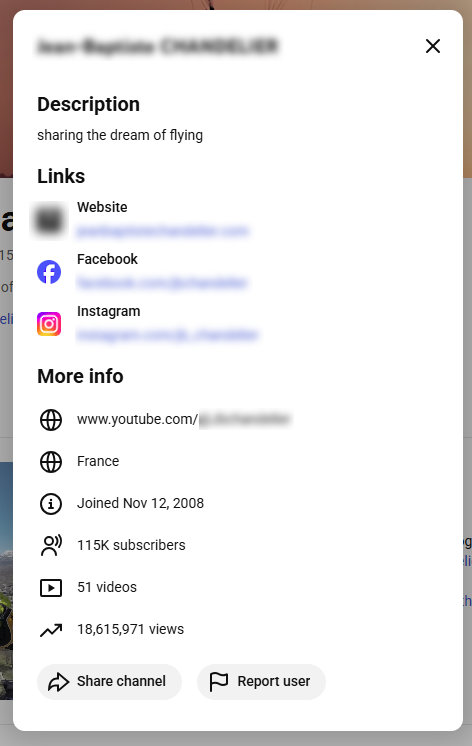
Step 1 Go to the uploader's YouTube channel and check the "more" section for contact information or links to social media profiles.
Step 2 Reach out via email or social media with a polite and clear message, explaining why you're looking for the video.
Step 3 Ask if they would be willing to share the file or reupload it.
Part 3. FAQs about Deleted YouTube Videos
Q1. Why are YouTube videos deleted?
YouTube videos can be removed for several reasons, including copyright claims or violations of the platform's community guidelines.
Q2. When you delete a video on YouTube, is it gone forever?
Yes, it is gone forever from the platform. YouTube states that deletion is a permanent action. Once you confirm "Delete forever", there is no official "Recently Deleted" folder or undo button within YouTube to recover it. Although fragments of data might remain in YouTube's systems for a period, regular users have no way to access them. Therefore, you should always assume that deleting a video is irreversible.
Q3. How to see deleted videos on YouTube History?
Navigate to YouTube, click on the menu icon, select "History" from the left navigation bar to proceed to ""Watch history". If the specific entry is not immediately visible, you can use the small search bar on the right by keywords or channel names. Additionally, remember to check your "Liked videos" and saved playlists, as video titles often remain listed there even after the original content is deleted, providing crucial details for further searches.
Q4. How to find deleted YouTube videos link?
This is a common first hurdle, as many recovery methods require the video's exact URL or ID.
From browser history: Open your browser's history page, usually via "Ctrl+H" or "Cmd+Y". Search for terms like "youtube.com/watch" or keywords from the video's title. When you find the entry, you can copy the full URL directly from the address bar or the history list.
From YouTube playlist: If your video is removed passively and you had added the video to a YouTube playlist, go to that playlist. Click the three-dot menu and select "Details", then click the "Videos" in the left navigation bar. All videos will appear in a list on the right, including removed ones. Click it and copy the URL under the video.
Conclusion
In summary, while YouTube videos can disappear due to various reasons, this guide has outlined six strategies on how to find deleted YouTube videos. From using powerful archives to seeking help from online communities, you have several options to view deleted YouTube videos. However, the most reliable strategy is always prevention. By using a capable tool like TunePat VideoGo All-In-One to download YouTube videos in advance, you can build a personal library and ensure your valuable content is never lost. Download TunePat and try it now!

AVCLabs Video Blur AI
Creating YouTube videos in public spaces? AVCLabs Video Blur AI automatically blurs faces, license plates, and sensitive details, making it perfect for creators ensuring privacy in their content. Get It Now>>



Izzy Warren
Content Writer