New feature 🔥 TunePat VideoGo now records videos from any website at up to 8x speed — say goodbye to real-time recording! Learn More

VideoGo All-In-One FAQ

faq
01. Registration

1. Install and launch TunePat VideoGo All-In-One on your computer, click on the Key icon icon to open the registration window. The license will be emailed to you within minutes. Please make sure you entered a valid email address when purchasing the license.

2. Copy and paste your Email address and license code that you have received from the email into the pop-up dialog window. Then click "Register" to register the program.
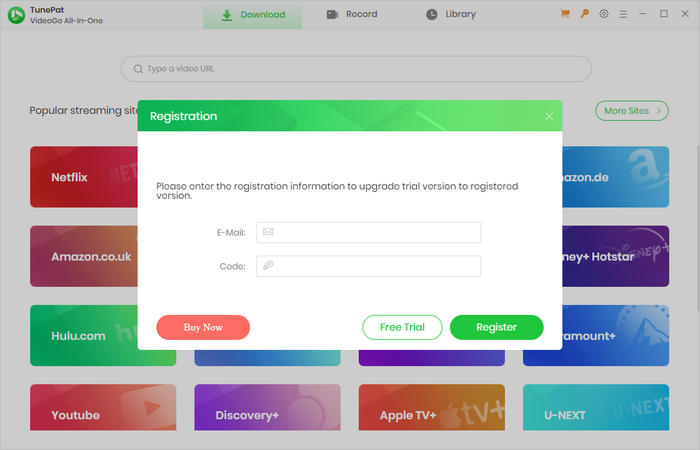
Register TunePat VideoGo All-In-One

  1. Make sure that the installed software matches the product and version you purchased - TunePat VideoGo All-In-One (Windows | Mac).
  2. Verify that the registration code you entered exactly matches the code provided in your purchase confirmation email. Check for any extra spaces or incorrect characters.
  3. Each registration code can be used on only one device at a time. If the code has already been activated on another device, sign out of or deactivate the previous device before trying to activate it on the current device.
  4. If the issue persists after trying the steps above, please contact our customer support team at support@tunepat.com for further assistance.

Please right-click the program icon and select "Run as administrator" in the dropdown list to launch TunePat. Then click on the Menu icon icon on the upper right corner of the screen and click "Register" from the menu list, input your registration email and code into the pop-up dialog window.
02. General Questions

TunePat VideoGo All-In-One supports downloading videos from more than 1,000 sites including Netflix, Amazon Prime, Disney+, Disney+ Hotstar, Hulu, Max, Paramount+, Discovery+, Apple TV+, U-NEXT, Peacock TV, DMM, NHK+, Crunchyroll, Abema, YouTube, etc. Any movie or TV show that can be played normally on those streaming sites can be downloaded by TunePat VideoGo All-In-One.

TunePat offers three subtitle encoding options to meet users' needs for playing video on different media players or devices.

  • The mode "External subtitles" will help you save subtitles as separate files.
  • "Internal subtitles" embeds the subtitles into the output video, allowing you to save multiple subtitle languages and switch between them while playing the video on supported players such as VLC Media Player.
  • If your media player or device does not provide subtitle options or support adding subtitles, "Hardcode subtitles" is a great option to help you burn the subtitles onto your video. But please note that you can save only one language in the video at a time.

TunePat VideoGo All-In-one can download movies and shows with high resolution. It can download YouTube videos in 8K and download 1080P videos from Netflix, Amazon Prime Video, Hulu, Paramount+, Discovery+, and more. The best video quality that TunePat can get from Disney+ and HBO Max is 720P. And TunePat supports saving 480P of Apple TV+ at present.

TunePat Netflix Video Downloader supports downloading Netflix movies and TV shows in up to 1080p quality. The maximum available quality may vary depending on the title, subscription plan, device, and other playback conditions. You can select 720p or 1080p in the Video Quality settings when the corresponding quality is available.

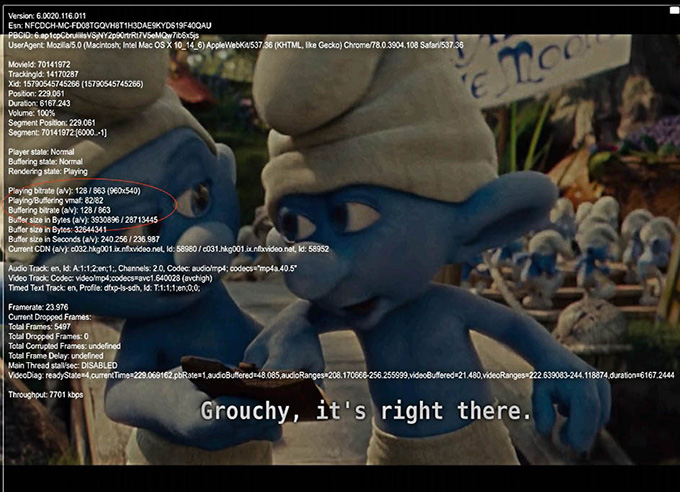
If the downloaded video's quality is lower than expected, please play the same video in Chrome and press the key combination "Ctrl + Alt + Shift + D" to view the playback information. Please capture a screenshot showing the video quality and send it to us along with the video's URL and log files for further analysis.

check video quality

TunePat supports hardware acceleration with Intel/NVIDIA/AMD graphics cards, which will enable you to run the program more smoothly and speed up the download process. To get the best performance, please make sure you have the latest graphics driver installed on your computer. Here is how to check and upgrade the graphics cards:

  1. Right-click the Windows "Start" menu, select "Device Manager", expand "Display adapters", then right-click your graphics card and select "Update driver".
  2. Sometimes driver upgrades might end in failure. No worries, you can also install the latest graphics driver from your graphics card manufacturer's website: Intel / NVIDIA / AMD (choose the exact one according to your computer). After upgrading your graphics driver, please reboot your computer to activate it.
03. Subscription FAQ

There are 2 types of subscription tiers for your choice (1-year/ lifetime). Your subscription tier will determine how long you can use the program to download movies and series.

To ensure the service, your annual plan will be auto-renew after 1 year. If you don't need it anymore, you can cancel the renewal subscription service before the renewal date.

If you have other questions about the subscription, please read TunePat Subscription FAQ.

We currently do not support upgrade packages, whether you want to upgrade your subscription from yearly plan to lifetime plan. Please purchase the subscription you want additionally. And in this case, we could offer you a discount. Please contact the support team for the details.

If you have other questions about the subscription, please read TunePat Subscription FAQ.

04. Technical Support

If a conversion fails, try these troubleshooting steps first:

  1. Update or download the latest version. In TunePat, go to Menu > Check for updates, or download the latest version from the TunePat Download Page.
  2. Switch between Download and Record to see if the other method works. Download files in smaller batches instead of processing too many files at once.
  3. Check your account status. Make sure you can sign in to your account successfully using an external web browser, and verify that your account has an active subscription. You can also try signing in to or out of your account in the program, then check whether the video can play normally within the program.
  4. Check your IP address and regional restrictions. If you are using a VPN, try disabling it or switching to a different VPN server.

If the problem persists, please contact us at support@tunepat.com or via Menu > Feedback. Please clearly describe the issue, the troubleshooting steps you have already tried, and the results. To help us investigate the problem more efficiently, please also provide the following information:

  • Screenshots or a screen recording showing the issue.
  • A link to the uploaded screen recording, if available.
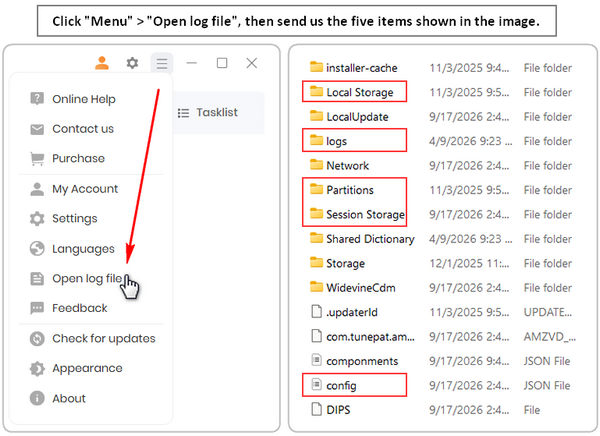
  • The TunePat log files and login cache, including the Local Storage, Partitions, Session Storage folders, and config.json file.
  • send log files and login cache
05. Refund Policy

TunePat offers a money-back guarantee within 5 days for annual plans and 30 days for the lifetime plan, effective from the date of purchase. For more details, please visit the Refund Policy.