Netflix Video Downloader Tutorial

TunePat Netflix Video Downloader is designed to help users download movies and TV shows from Netflix, allowing them to watch Netflix videos offline on any device without spending internet traffic and without disrupting Netflix's limitations. And it is extremely easy to use. Just open your favorite Netflix video, click the download button, wait for a little, and you can enjoy it! For more details, please refer to the user's guide below.
TunePat Netflix Video Downloader is easy to operate for users as it can directly find the videos you need inside the built-in Netflix web player. You just need to log in with your Netflix account on TunePat, then add the videos and click the download icon, the videos will be downloaded at fast speed.
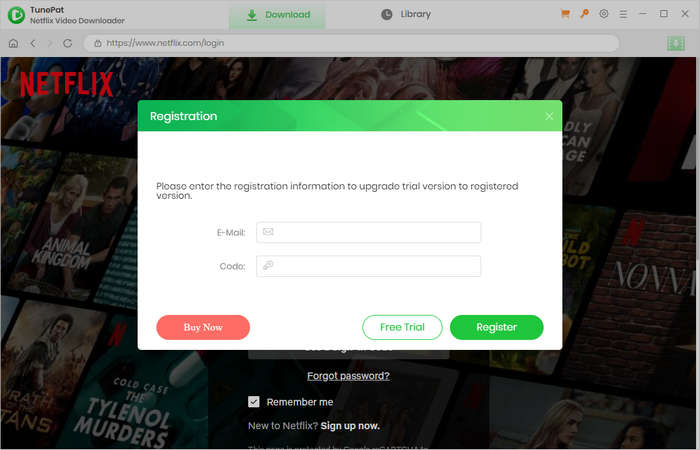
Step 1 Run TunePat Netflix Video Downloader on Windows PC or Mac, click on the  icon and choose "Register" to open the registration window as below.
Step 2 Copy and paste the registration email and code you received into the registration popup window. Then click the "Register" button to confirm.
Note: The registration information is case sensitive. Please do not leave space at the beginning or end of the registration information.
Step 1 Run TunePat Netflix Video Downloader on Windows PC or Mac, click "Sign In" on the top right corner and log in to Netflix with your account.
Note: TunePat will not take any information out of your account.

Step 2 Click on the  button on the upper right corner to customize the video format (MP4/MKV), video quality (High, Medium, Low), and output path, select the language of audio tracks and subtitles, etc.
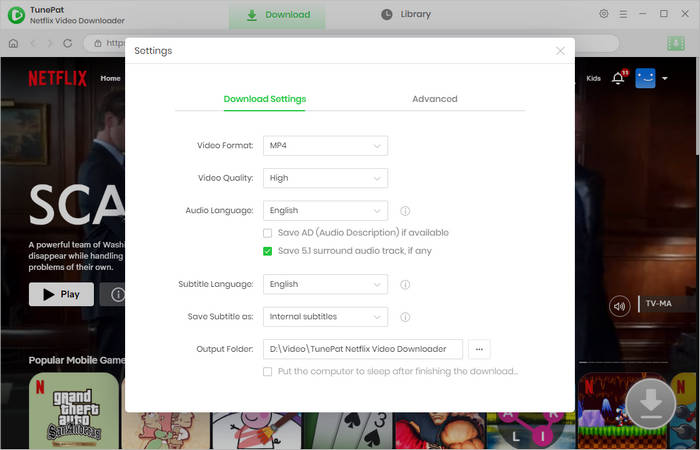
Step 3 Browse and find the movie or TV show you want to download, choose the video, and click the green download button on the bottom right corner.

Step 4 Choose the advanced download settings, including video quality, audio tracks and subtitles. If you choose a movie, you will see the advanced download settings window as below after clicking the download button. If you are downloading a TV show, you need to choose episodes first, and then click the "Advanced Download" button to open the window.
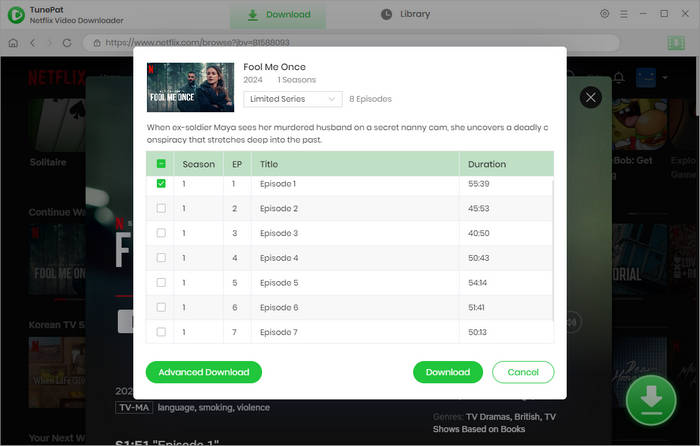
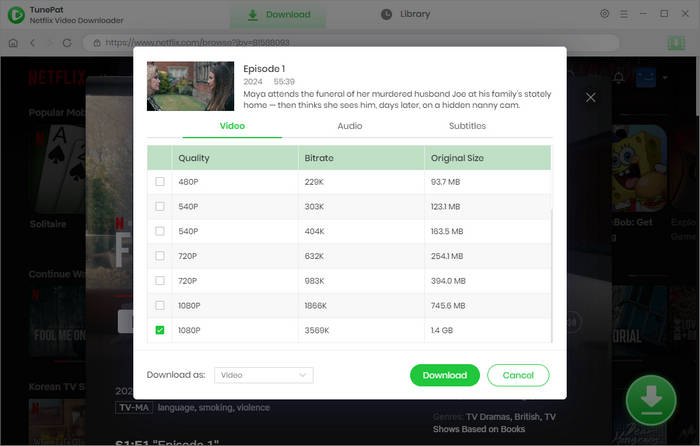
Step 5 Click on the "Download" button to start downloading the video to the output quality you chose. It will be downloaded in a few minutes. If you want to continue adding new titles to the download queue, just repeat the above steps.

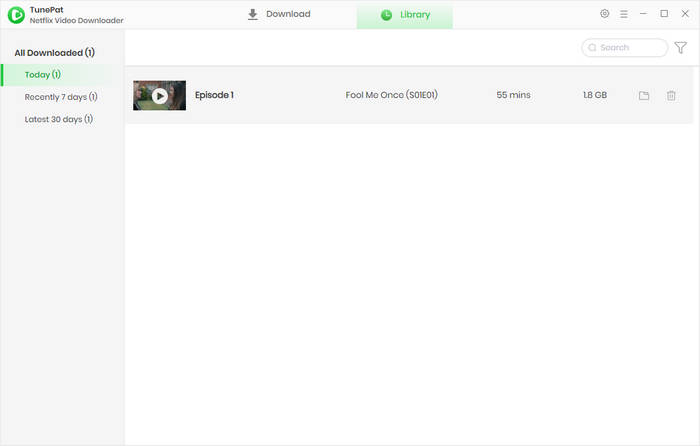
Step 6 After downloading, you can click on "Library" tab and find all the downloaded videos saved on your computer.
 Get PDF User Manual of TunePat Netflix Video Downloader